Zenvlo Engage guide
AI agents and knowledge base
Let an AI answer customer questions from your own information, and understand how AI usage is paid.
Teach it your business
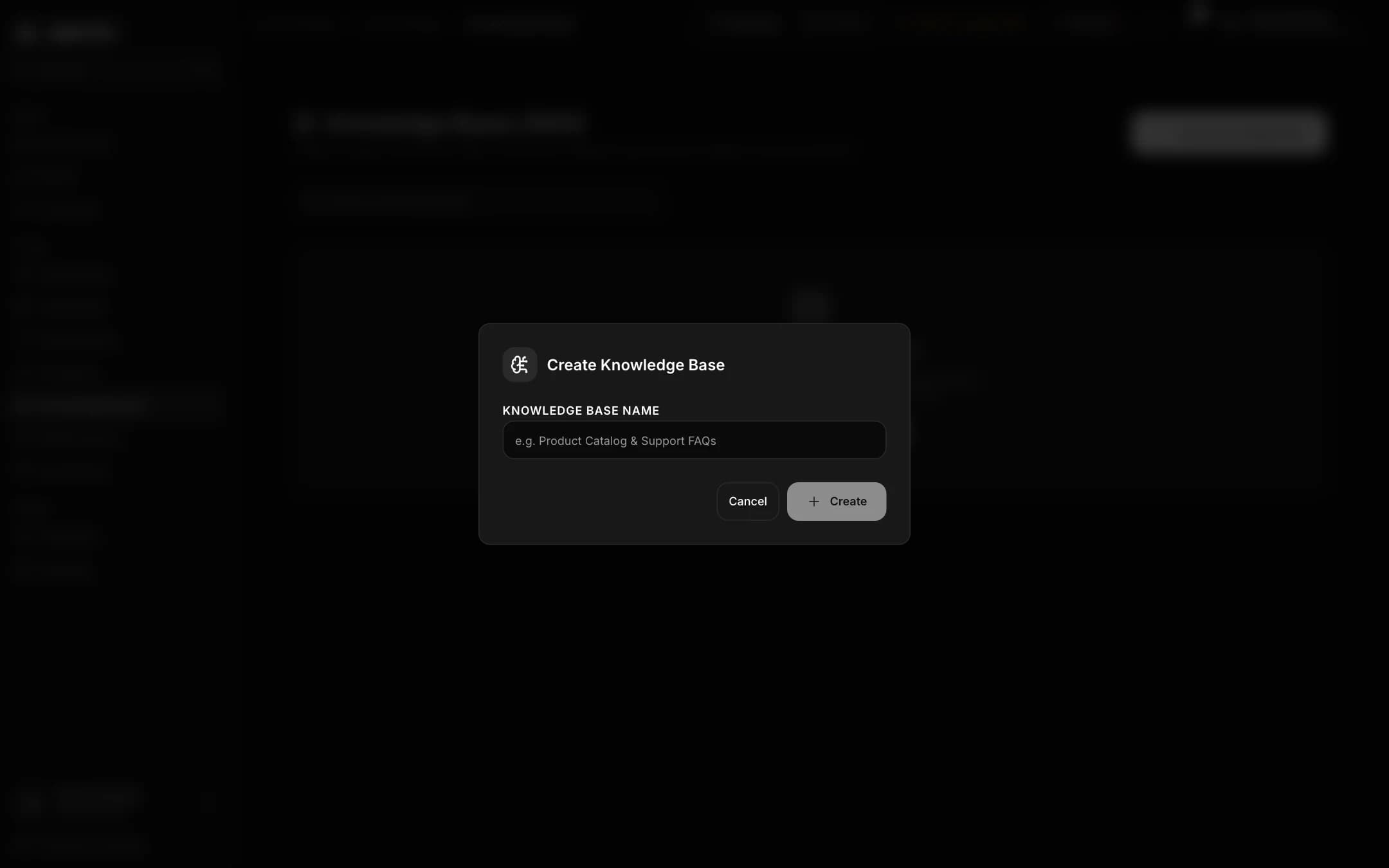
- 1Open Knowledge base and press Create Knowledge Base. Give it a name such as "Product Catalog & Support FAQs".
- 2Open Manage Docs. Upload a file (
.txt,.md,.jsonor.csv) or press Add Text Document and paste a title and the text. - 3Wait for the Indexing Status to finish. Zenvlo breaks your text into pieces so the AI can find the right answer.
Create an agent
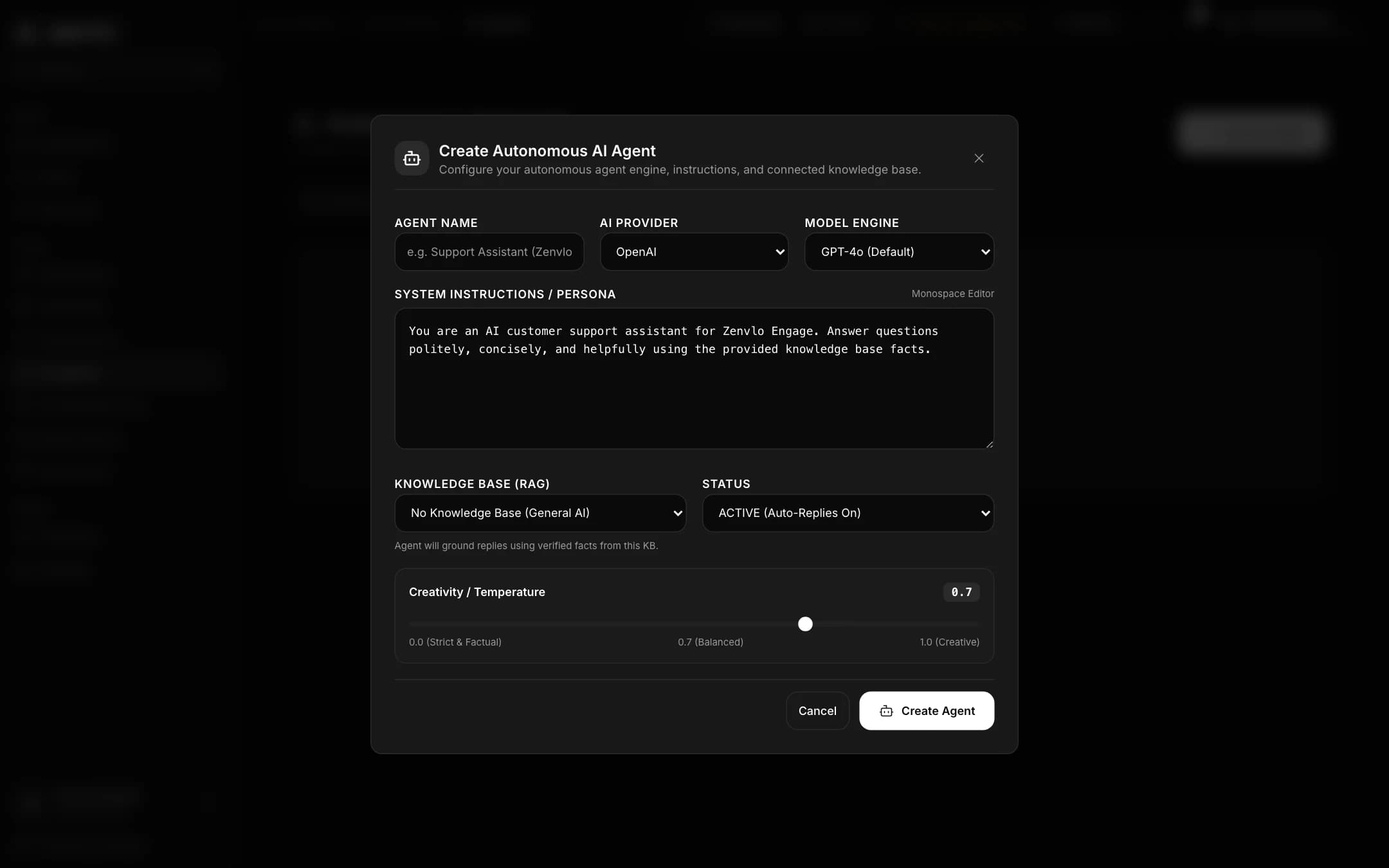
Open AI agents (AI replies in Creator mode) and press Create AI Agent. Set:
- Agent Name
- AI Provider and Model Engine
- System prompt: tell it who it is, how to speak and what it must never do
- Knowledge Base (RAG): choose the one you made, or leave No Knowledge Base (General AI)
- Status: ACTIVE (Auto-Replies On) or INACTIVE
- Creativity / Temperature: lower is more careful, higher is more varied
Use the Test Playground on the agent to try questions before you switch it on. Your plan sets how many agents you can have.
The AI Wallet
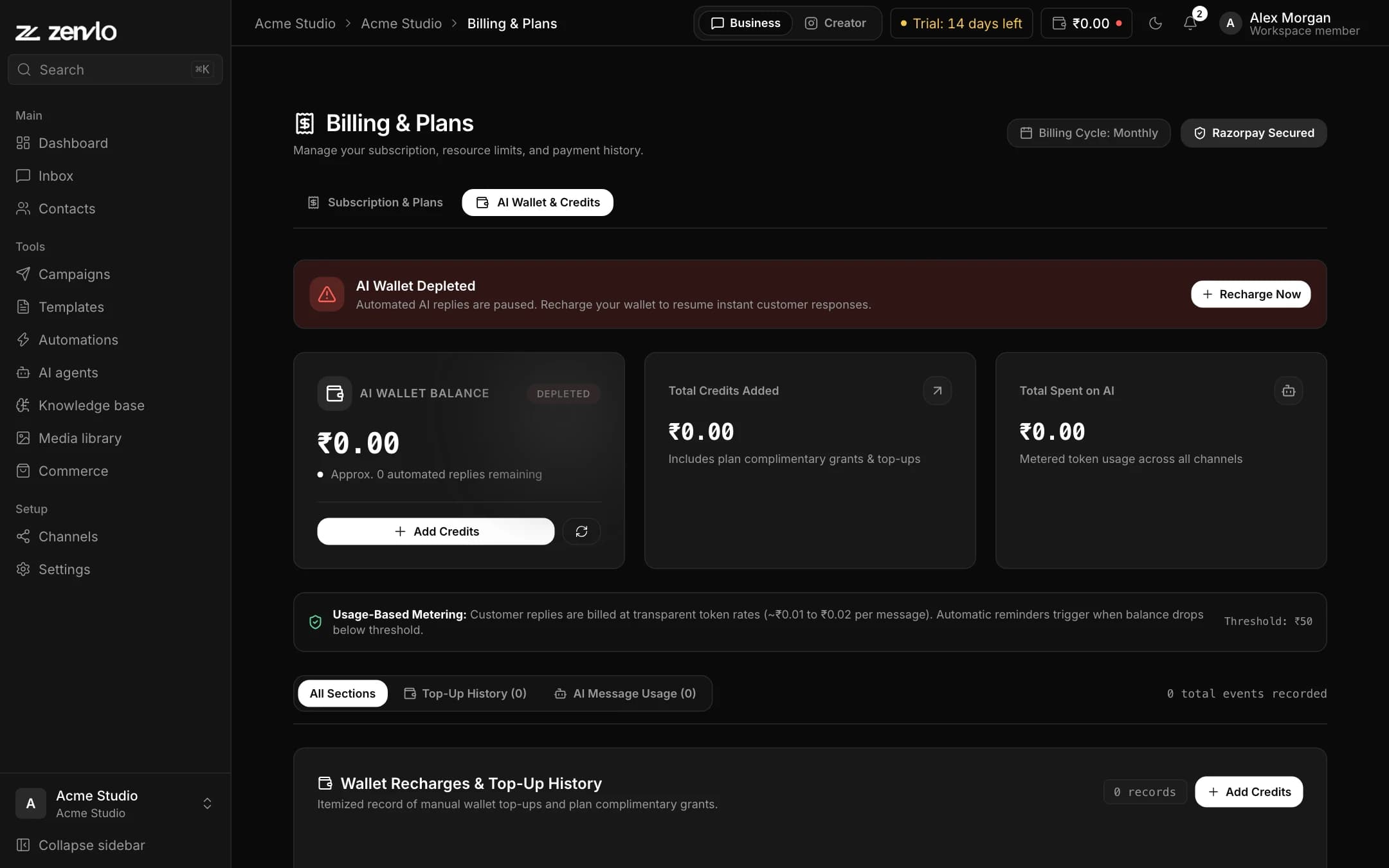
AI replies are paid from a prepaid AI Wallet in rupees. Open Billing, then AI Wallet & Credits.
- Press Recharge AI Wallet, choose an amount (minimum ₹50) and pay with Razorpay.
- Each AI reply deducts a small amount. The usage table shows the AI model, tokens, amount deducted and balance after.
- You get a Low AI Balance Warning when the wallet runs low. When it is empty, AI auto-replies stop until you recharge, and chats go to your team.
Stuck? Talk to us and a real person will help.