Zenvlo Engage guide
Build an automation
Create WhatsApp flows that reply, ask questions, tag contacts and hand over to your team.
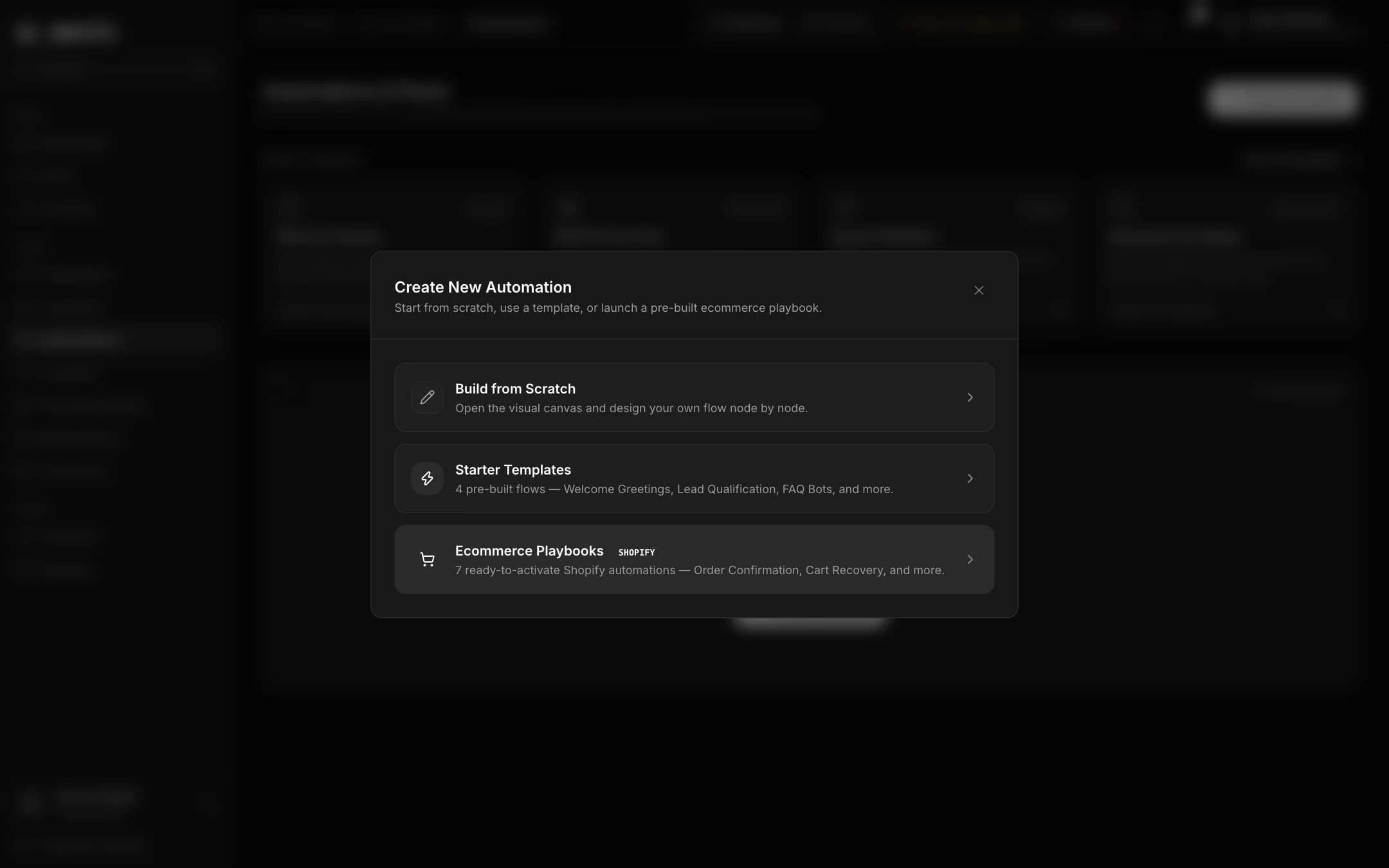
Open Automations in the sidebar (Business mode). Press to create one, choose a trigger, then build the flow on the canvas.
Triggers
- A customer sends a message containing a keyword.
- The first message from a new contact.
- A customer replies to a broadcast campaign.
- An API or webhook call from your own app.
- A Shopify event, such as a new order or an abandoned cart.
Building blocks
| Block | What it does |
|---|---|
| Send Text Message | Sends a plain message. |
| Send Interactive Buttons | Up to 3 tap buttons. |
| Send Interactive List Menu | Up to 10 options in a menu. |
| Send Media / PDF | Sends an image, video or document. |
| Collect Customer Input | Asks a question and saves the answer. |
| Condition (If / Else) | Branches the flow. |
| Tag Contact in CRM | Adds a tag to the person. |
| HTTP / Webhook Request | Calls your own system. |
| Human Agent Handoff | Stops the flow and passes the chat to your team. |
| Send Template | Sends an approved template. |
| Wait | Pauses for minutes, hours or days. |
- 1Drag blocks onto the canvas from the palette and connect them.
- 2Click a block to set its text, buttons or conditions.
- 3Save and turn the automation on. Test it from your own number first.
Your plan sets how many automation runs you get each month.
Stuck? Talk to us and a real person will help.