Zenvlo Engage guide
Contacts and tags
Add people, import a list and organise them with tags.
Open Contacts in the sidebar (Creator mode calls it Audience). Every contact needs a WhatsApp phone number.
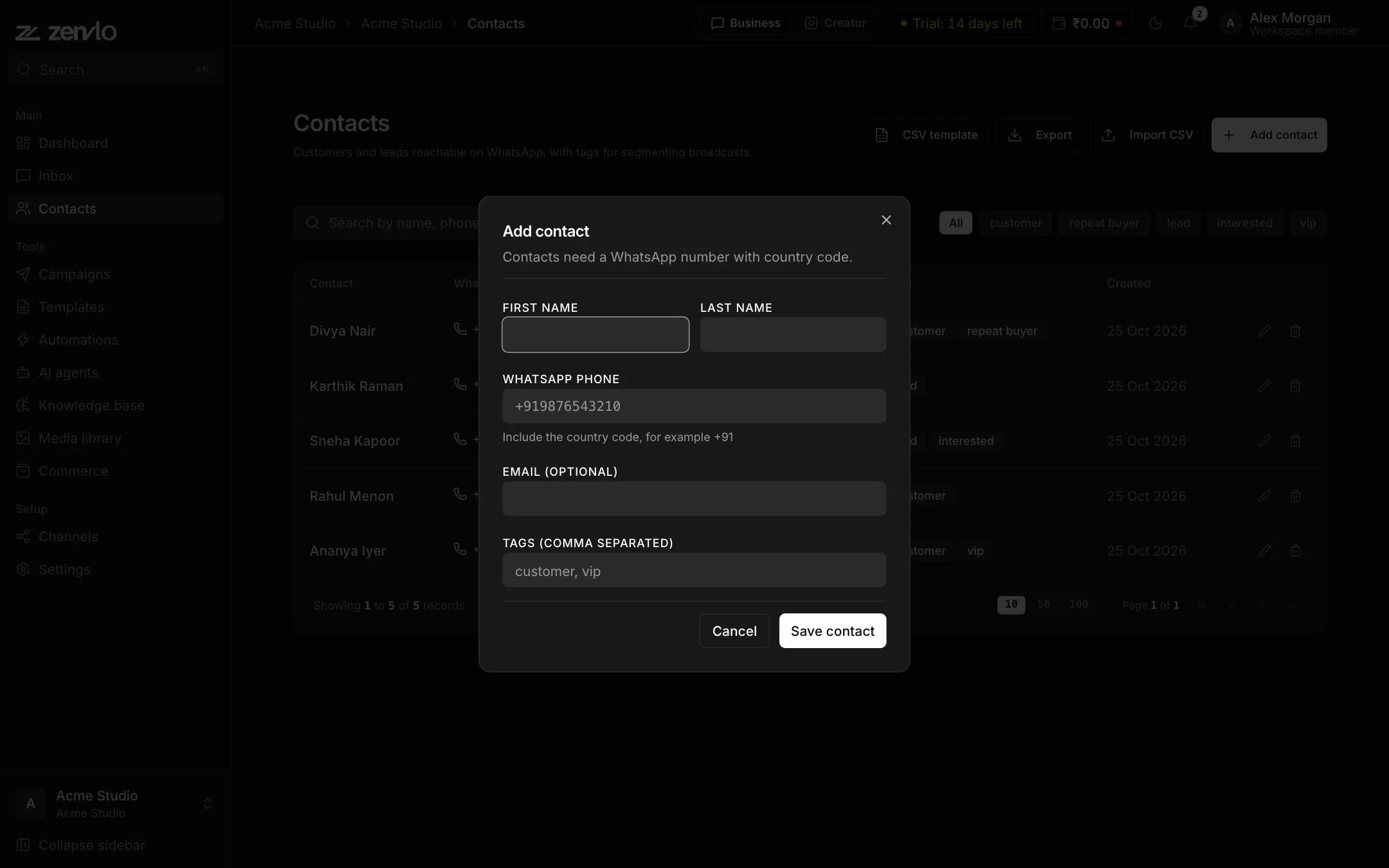
Add one contact
Press add, fill in the phone number with country code and any other details. Put tags in the tags field separated by commas, for example customer, vip.
Import a list
- 1Press CSV template to download
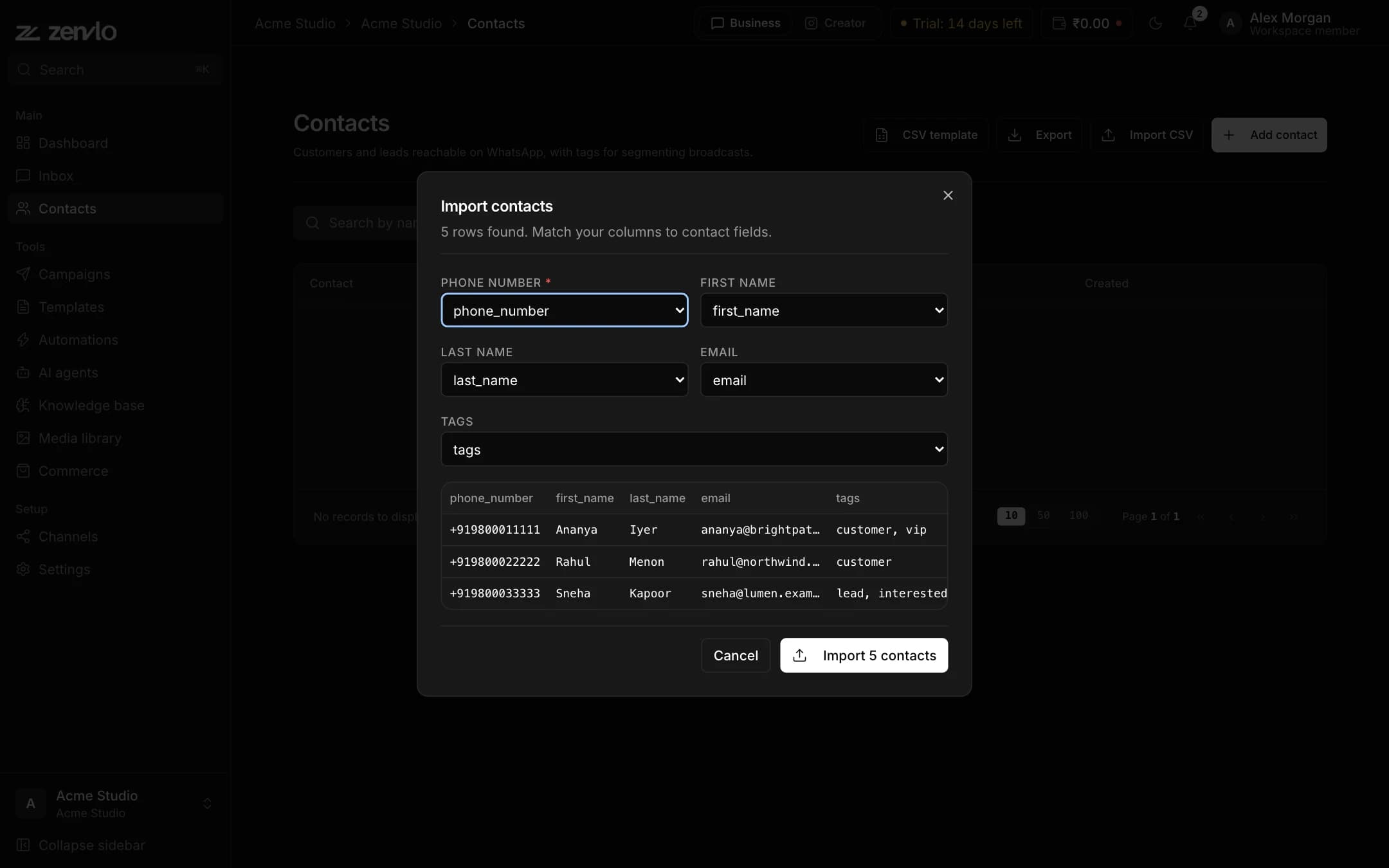
zenvlo_contacts_template.csv. Its columns arephone_number,first_name,last_name,emailandtags. - 2Fill it in with your contacts and save it as a CSV.
- 3Press Import CSV and choose the file.
- 4Match your columns to Phone number (required), First name, Last name, Email and Tags.
- 5Confirm. You will see Imported N contacts (M skipped). Rows without a valid phone number are skipped.
Organise and export
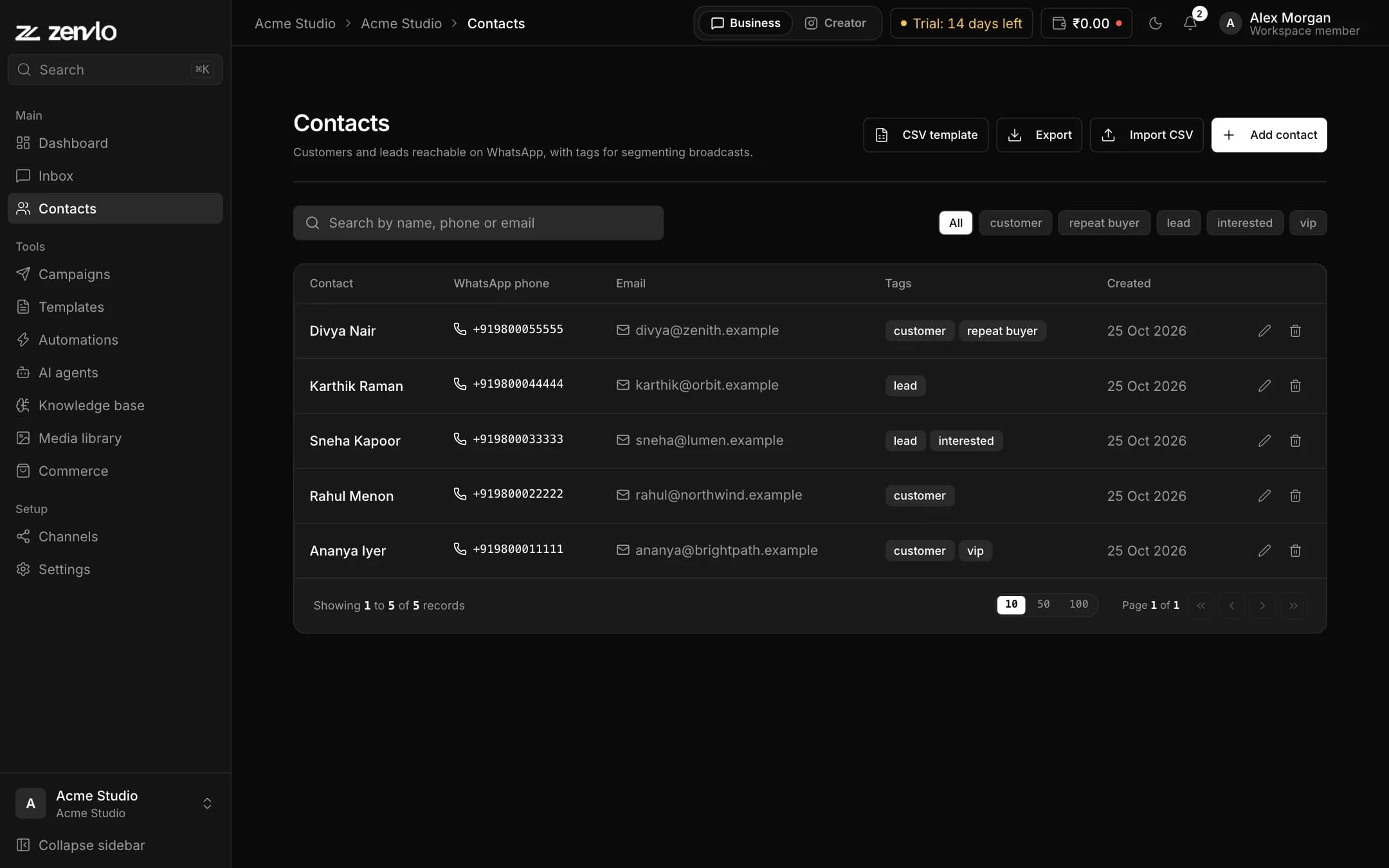
- Search by name, phone or email, and filter by tag.
- Press Export CSV to download your contacts.
- Tags are how you keep customers organised today. Use them to decide who you pick for a campaign.
Stuck? Talk to us and a real person will help.