Zenvlo Engage guide
Connect WhatsApp
Link your WhatsApp Business number through Meta in about a minute. Here is what to prepare and what each screen means.
Before you start
These come from Meta, not from Zenvlo, and Meta can change them. Follow the screens Meta shows you if they differ.
- A Facebook login that can create or manage a Meta business portfolio (also called a Business Manager account).
- A phone number you control that can receive a verification SMS or call. Use a number that is not already in use on WhatsApp, or follow Meta’s prompts to move it.
- A display name for your business that follows Meta’s naming rules. Meta reviews it, so it may take a short while to be approved.
- A payment method in Meta for your WhatsApp Business account, so Meta can bill your message charges. You add this in Meta’s business settings, not in Zenvlo.
- Business verification (recommended). Meta may ask you to verify your business with documents. Until you do, your daily messaging limit stays low.
Connect your number
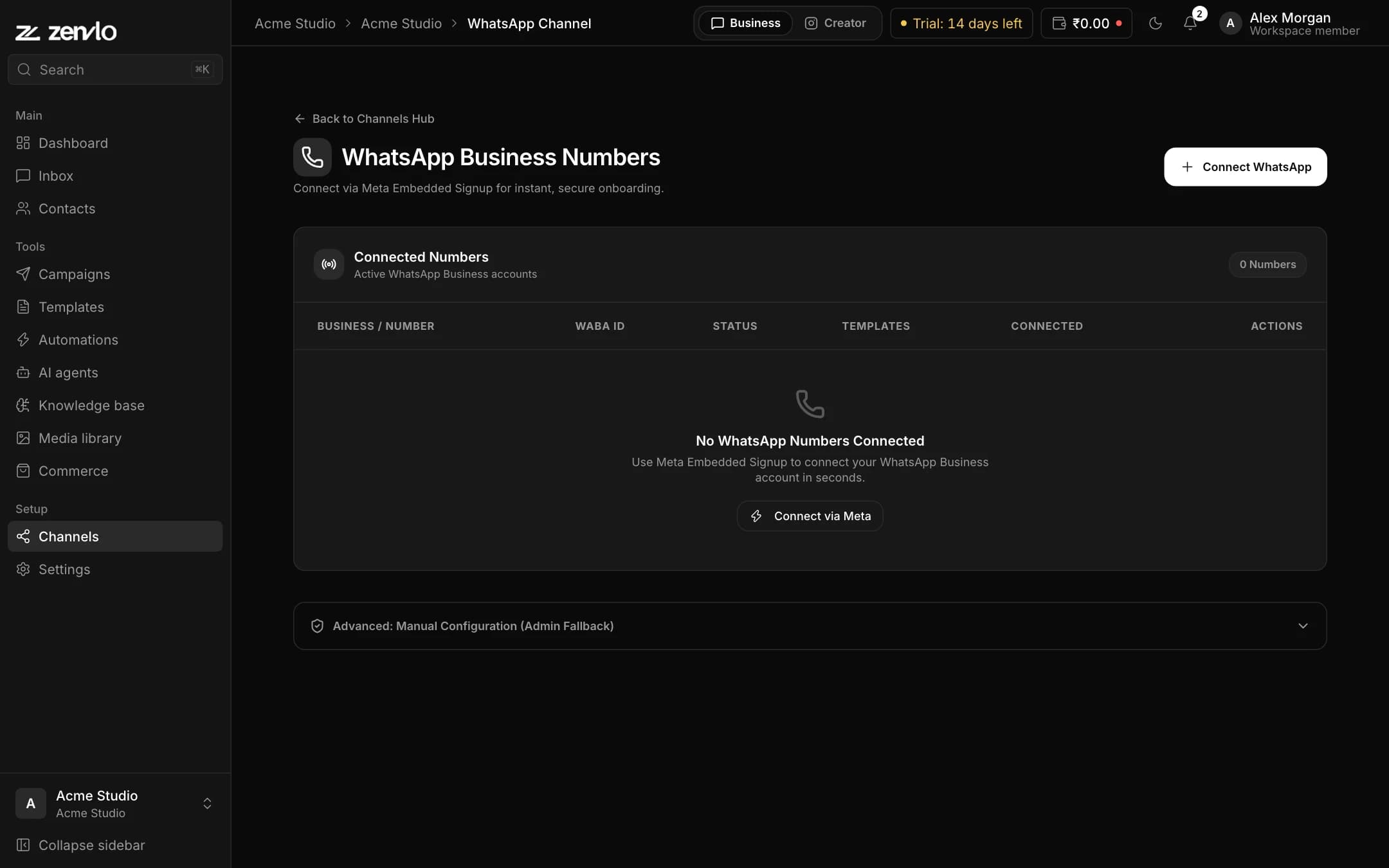
- 1
Open the WhatsApp page
In Business mode go to Channels, then Manage WhatsApp numbers. The page is called WhatsApp Business Numbers.
- 2
Start
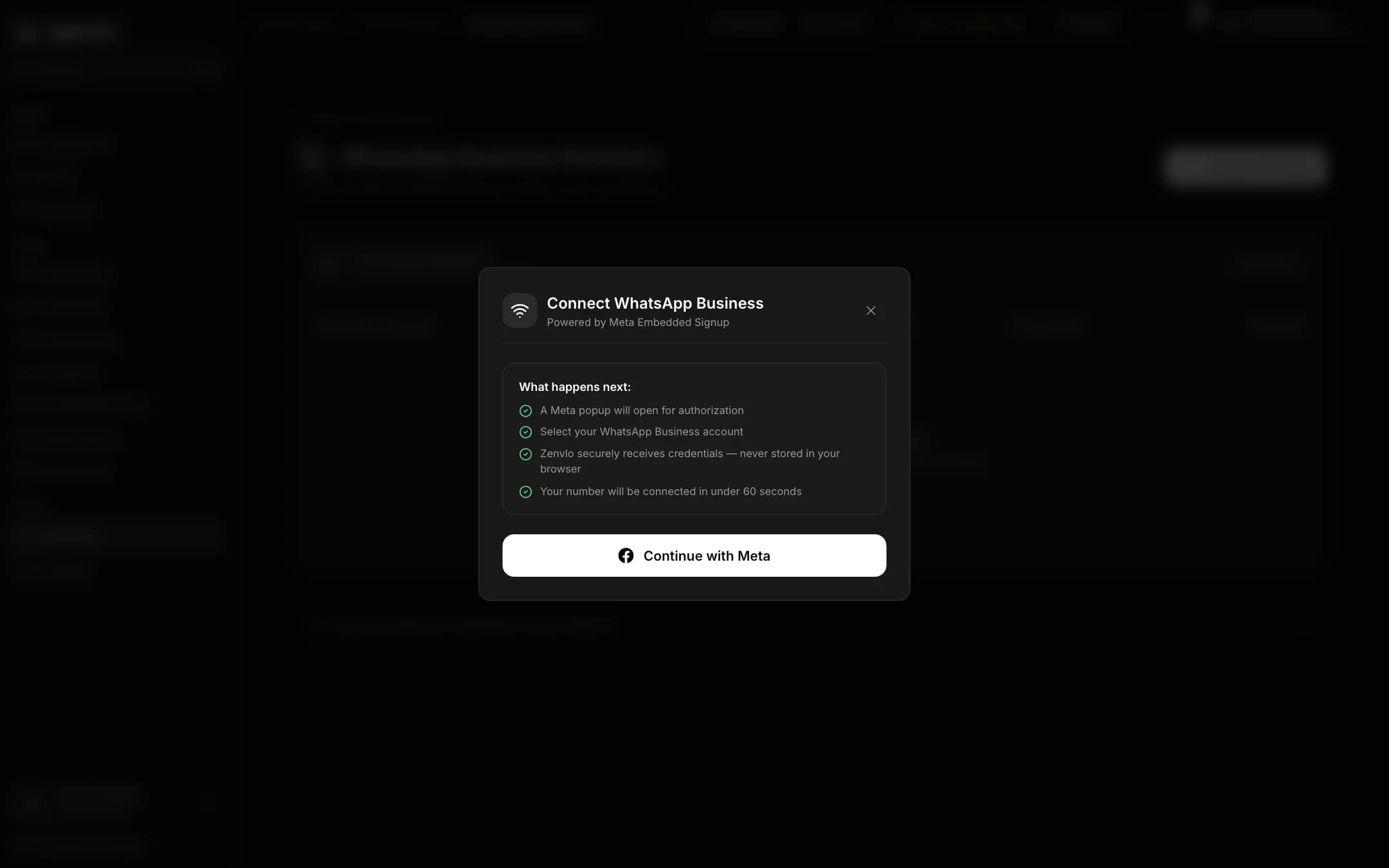
Press Connect WhatsApp. A box titled Connect WhatsApp Business explains what happens next.
- 3
Continue with Meta
Press Continue with Meta. A Meta window opens. This is Meta’s own screen.
- 4
Follow Meta’s screens
Log in to Facebook, choose or create your business portfolio, choose or create your WhatsApp Business account, add or pick your phone number and confirm it with the code Meta sends, then allow the permissions.
- 5
Wait for Zenvlo to finish
Back in Zenvlo you will see a progress list: Exchanging authorization code, Verifying phone number with Meta, Subscribing webhooks & syncing templates, then Channel ready!.
- 6
Done
The final screen says Connected! and shows how many message templates were synced from Meta.
If it asks for a PIN
Some numbers need a 6-digit registration PIN the first time. Zenvlo shows 2FA PIN Required and a 6-Digit Registration PIN field. This is the two-step verification PIN you set in WhatsApp Business Manager. Type it and continue.
Check your number is healthy
The table lists each number with its status: Connected, Syncing, Verifying, Connecting, Pending, Degraded, Failed or Disconnected. Open a number to see:
- Quality rating from Meta (green, yellow or red).
- Messaging limit tier, which is how many customers you can start chats with per day.
- Display name status, which is Meta’s review of your business name.
- The webhook URL Zenvlo registered for you.
Row buttons: Health (check the connection), Sync (pull your templates from Meta again) and Disconnect.
Troubleshooting
| You see | What to do |
|---|---|
| No WhatsApp phone numbers found in the authorized WABA | Add a phone number to your WhatsApp Business account in Meta Business Manager, then connect again. |
| WhatsApp number is already connected to this workspace | It is already linked. Open the table to find it. |
| Plan limit reached | Your plan allows a set number of WhatsApp numbers. Choose a bigger plan under Billing. |
| Onboarding Failed | Close the box and try again. If it keeps failing, contact us with the time you tried. |
Manual connection (admins only)
If the Meta popup cannot be used, open Advanced: Manual Configuration (Admin Fallback) and enter Display Name, WABA ID, Phone Number ID, System User Access Token and Webhook Verify Token, then press Save & Connect. Most people never need this.
Disconnect a number
Press Disconnect on the row and confirm. Your history is kept. Zenvlo stops receiving messages for that number.
Stuck? Talk to us and a real person will help.