Zenvlo Engage guide
Connect Instagram
Link a professional Instagram account with Instagram Login. No Facebook Page needed.
Before you start
- Your Instagram account must be a Professional account (Creator or Business). Personal accounts cannot connect. To switch, open Instagram, go to Settings and choose to switch to a professional account.
- Your workspace must be in Creator mode, on a plan that includes Instagram accounts.
- You must be able to log in to that Instagram account.
Connect your account
- 1Switch to Creator mode in the top bar and open Channels, then Instagram (the page is
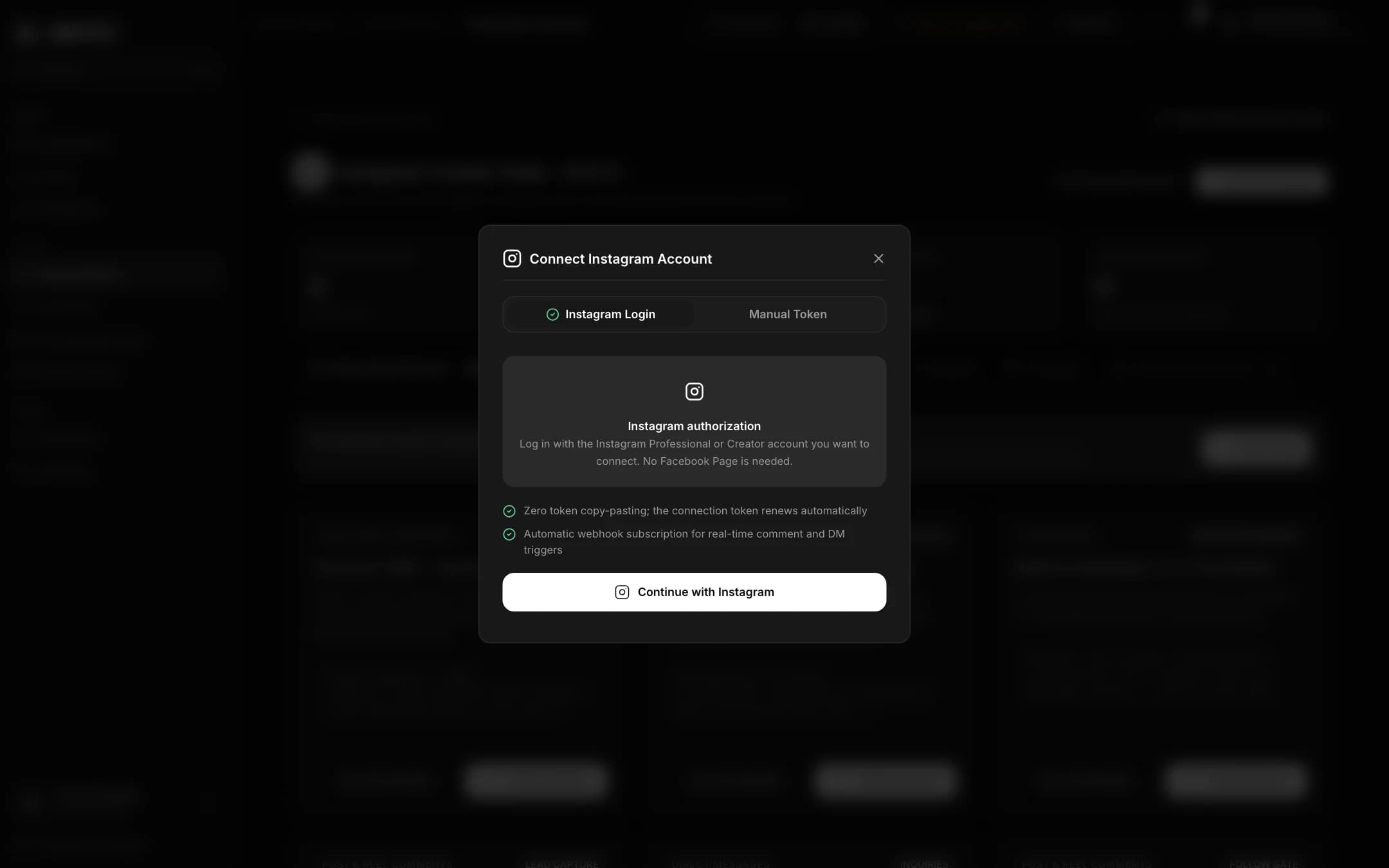
/channels/instagram). - 2Press Connect Account. The box is titled Connect Instagram Account.
- 3Press Continue with Instagram. Log in with the account you want to connect. You do not need a Facebook Page.
- 4Instagram shows a permission screen listing three permissions. Read them, then press Allow.
- 5You return to Zenvlo. The account appears under Connected Accounts with the status CONNECTED, and Zenvlo subscribes to comment and message events for you.
What each permission is for
| Permission | Why Zenvlo asks |
|---|---|
| instagram_business_basic | To read the account ID and username, so we show which account is connected. |
| instagram_business_manage_comments | To receive comments on your posts and reels, match your keywords, and post a public reply if you set one. |
| instagram_business_manage_messages | To send a private reply to a matching comment, and to answer people who message you. |
See exactly how this data is handled in our privacy policy.
Keep the connection healthy
- The connection renews itself automatically. You do not paste tokens.
- A private reply to a comment must be sent within Instagram’s 7-day window, and only once per comment.
- Comments made by your own account are ignored.
Disconnect
Press Disconnect on the account. Zenvlo erases the stored access token and stops acting for the account. To remove your data too, follow the data deletion instructions.
Stuck? Talk to us and a real person will help.