Zenvlo Engage guide
Message templates
WhatsApp requires approved templates to start a chat. Create one, send it to Meta, and use it in campaigns and automations.
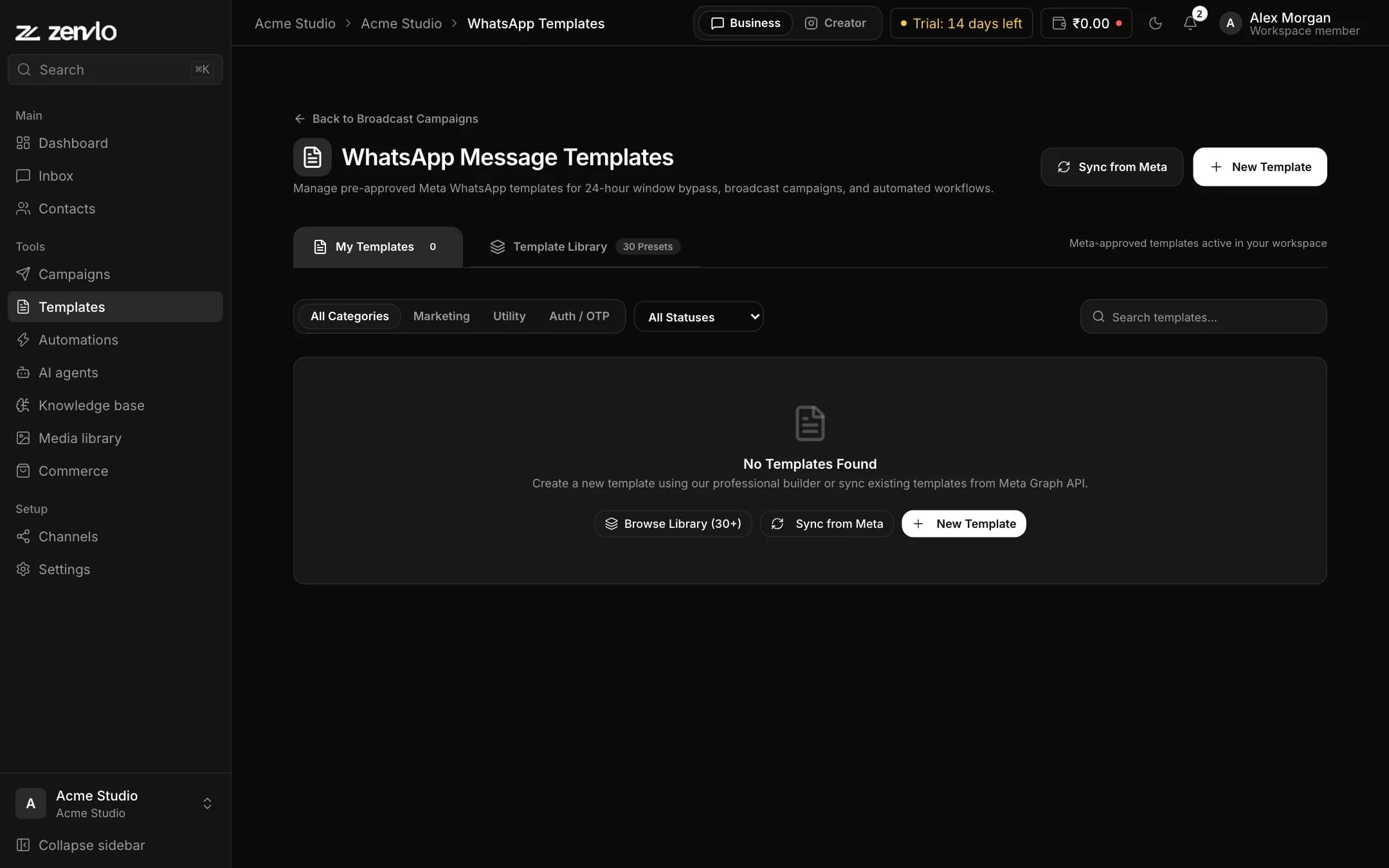
Open Templates in the sidebar (the page is WhatsApp Templates). A connected WhatsApp number is needed first.
Bring in templates you already have
Press Sync from Meta to pull every template from your WhatsApp Business account. You will see Successfully synced N templates from Meta!.
Create a template
- 1Press New Template, or open Template Library and press Use Template on one of 30+ ready-made examples.
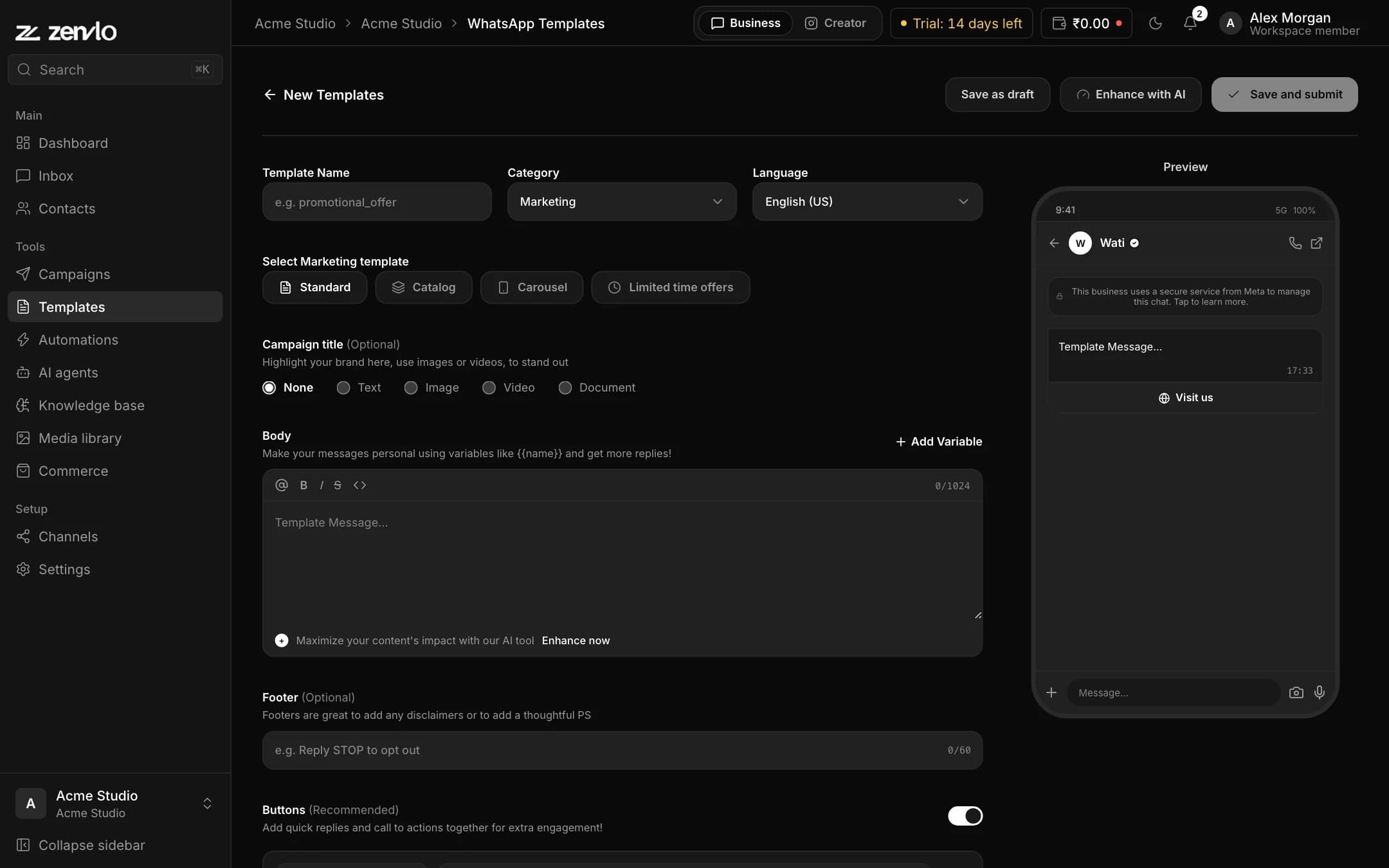
- 2Give it a lowercase Template Name such as
promotional_offer. - 3Choose a Category: Marketing, Utility or Authentication, and a Language.
- 4Add an optional header (text up to 60 characters, or an image, video or PDF sample), the body with
{{1}}-style variables, and an optional footer up to 60 characters. - 5Add up to a few buttons: Visit Website, Call Phone Number, Copy Offer Code or Quick Reply. Button text can be 25 characters.
- 6Fill in Sample Content for each variable so Meta can review it.
- 7Check the live phone preview, then press Save as draft or Save and submit.
Statuses
| Status | Meaning |
|---|---|
| Draft | Saved in Zenvlo, not sent to Meta. You can edit it. |
| Pending Review | Meta is reviewing it. Meta decides how long this takes. |
| Approved | You can use it. Press Send Test Message to try it on your own number. |
| Rejected | Meta said no. The Rejection Reason is shown. Edit it and submit again. |
| Paused | Meta has paused it, often because of poor customer feedback. |
Stuck? Talk to us and a real person will help.