Zenvlo Engage guide
Send a campaign
Broadcast an approved template to chosen contacts, now or later, and follow delivery.
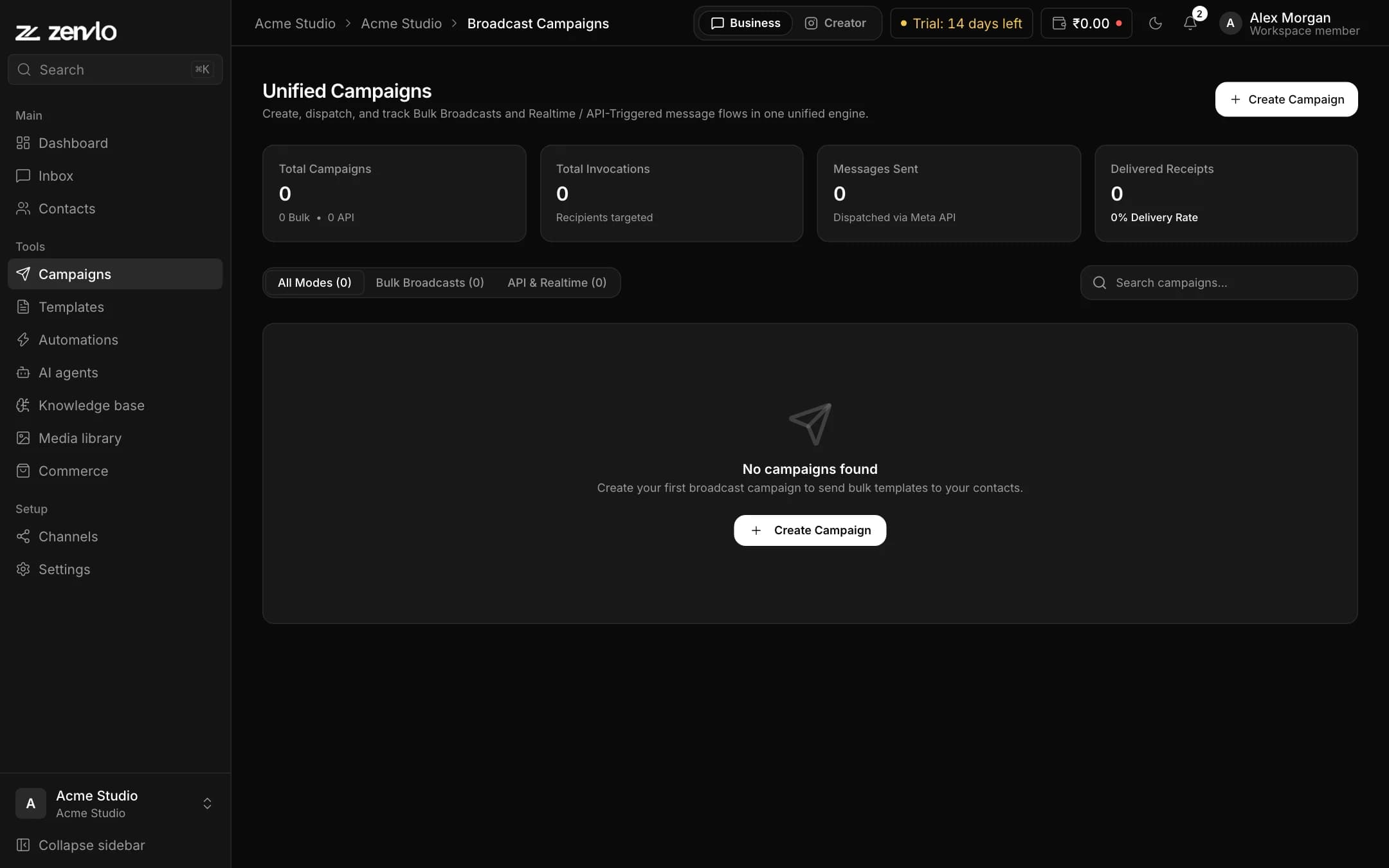
Open Campaigns in the sidebar (Broadcast Campaigns) and press create. A four-step wizard guides you. You need an approved template and at least one contact.
- 1
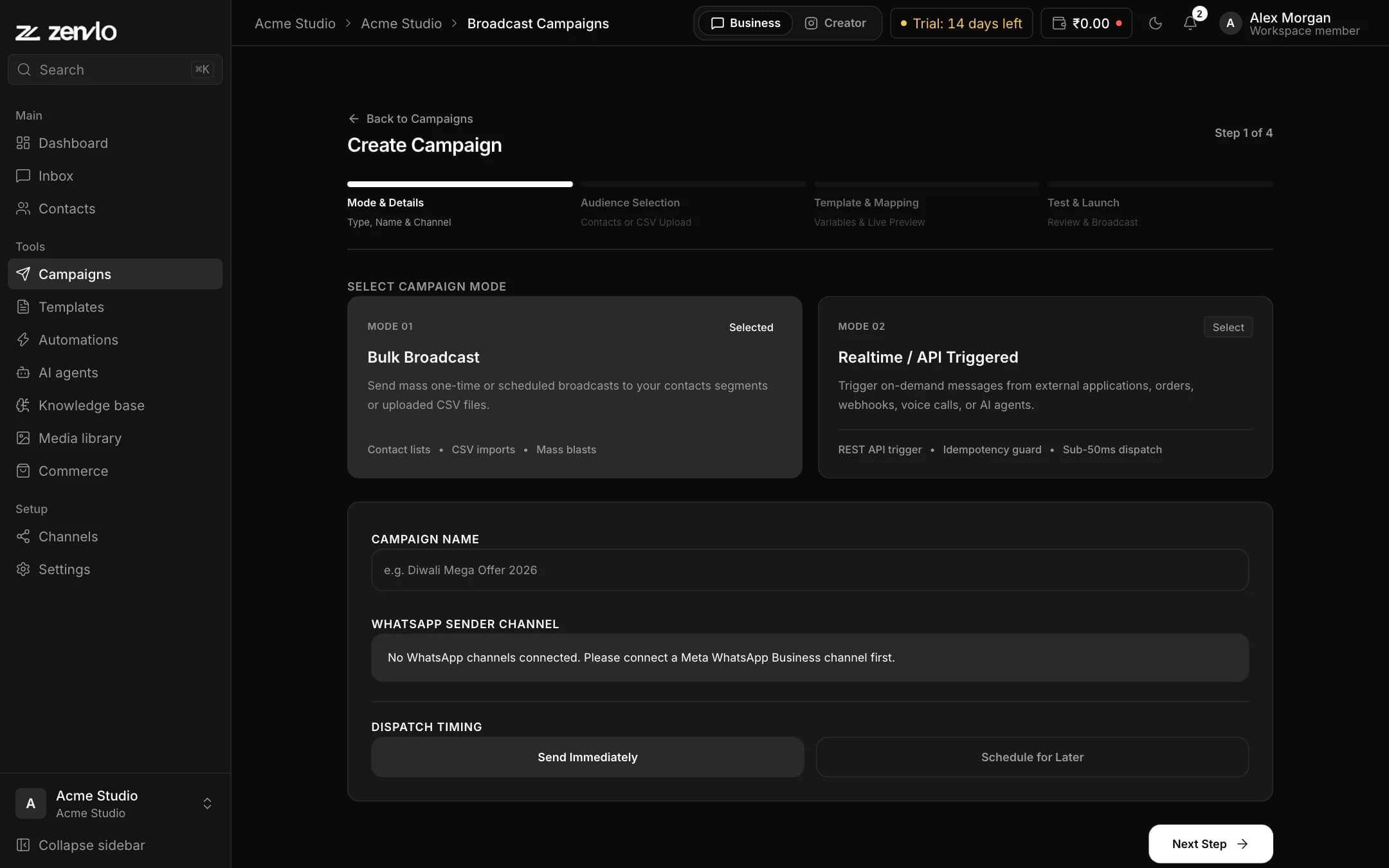
Mode and details
Choose Bulk Broadcast (send to a list) or Realtime / API Triggered (your app triggers each message). Name the campaign, choose the WhatsApp Sender Channel, and pick Send Immediately or Schedule for Later with a date and time.
- 2
Audience
Choose Existing Contacts (search by name or phone and select) or Upload CSV File. There is no saved-segment feature yet, so choose the contacts for each campaign.
- 3
Template and mapping
Pick a WhatsApp Approved Template. Map each variable to a contact field, and check the live preview.
- 4
Test and launch
Send a test to your own number first. Review the confirmation and press Launch Broadcast Now or Schedule Campaign.
Follow the results
Open the campaign to see Delivered to Device and Read by Customer counts, and the recipient list called Delivery Lifecycle. You can Pause, Resume, Cancel, or press Retry Failed (N) to try the ones that did not go through.
API-triggered campaigns
This mode shows an endpoint, a cURL example and an authentication header, with an idempotency guard so a retry never sends twice. It is running as soon as you create it.
Stuck? Talk to us and a real person will help.