Zenvlo CRM guide
Automation
Build workflows that create follow-ups, update records and call other systems for you.
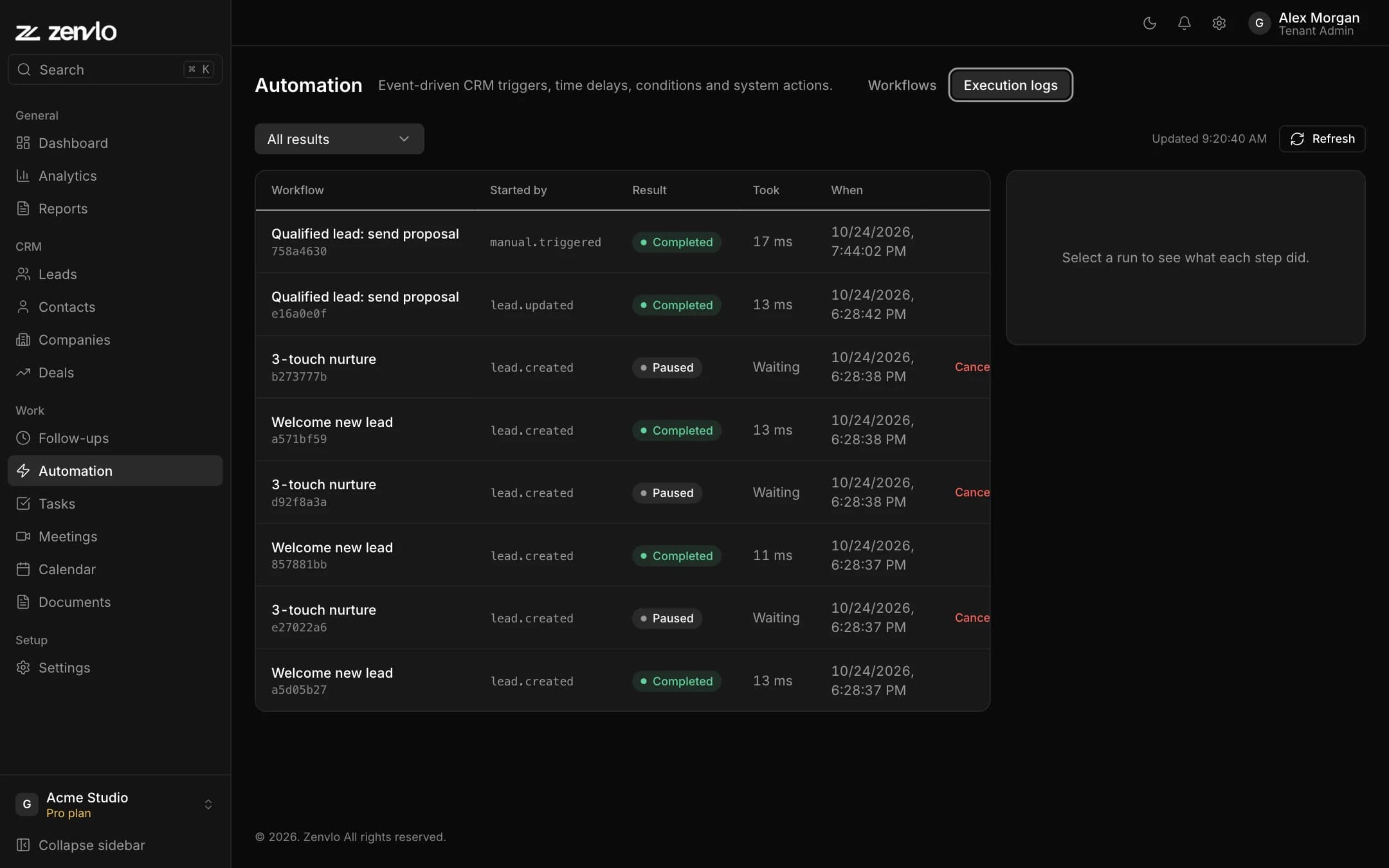
Open Automation. The Workflows tab lists what you have built. Execution logs shows every time one ran.
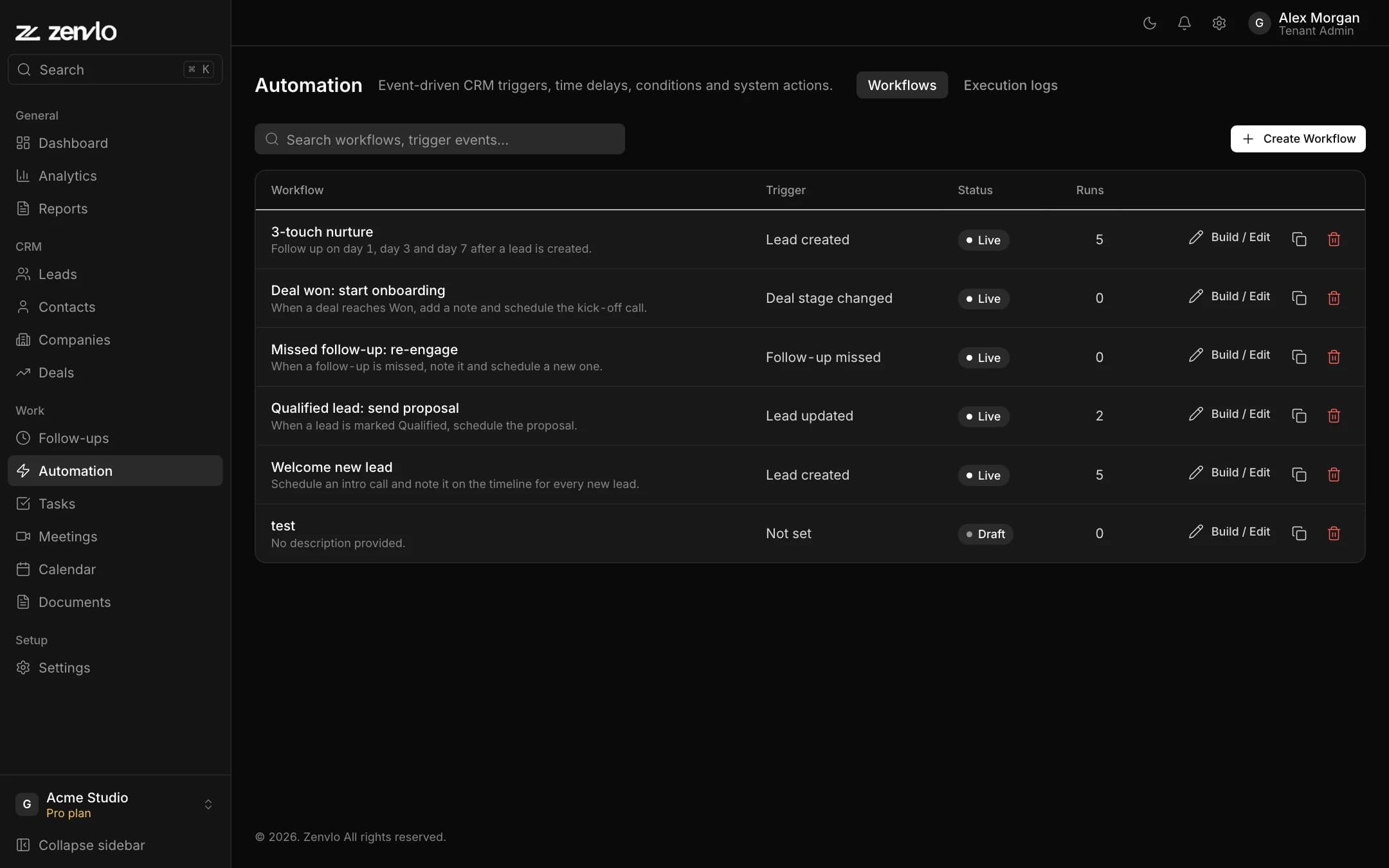
Create a workflow
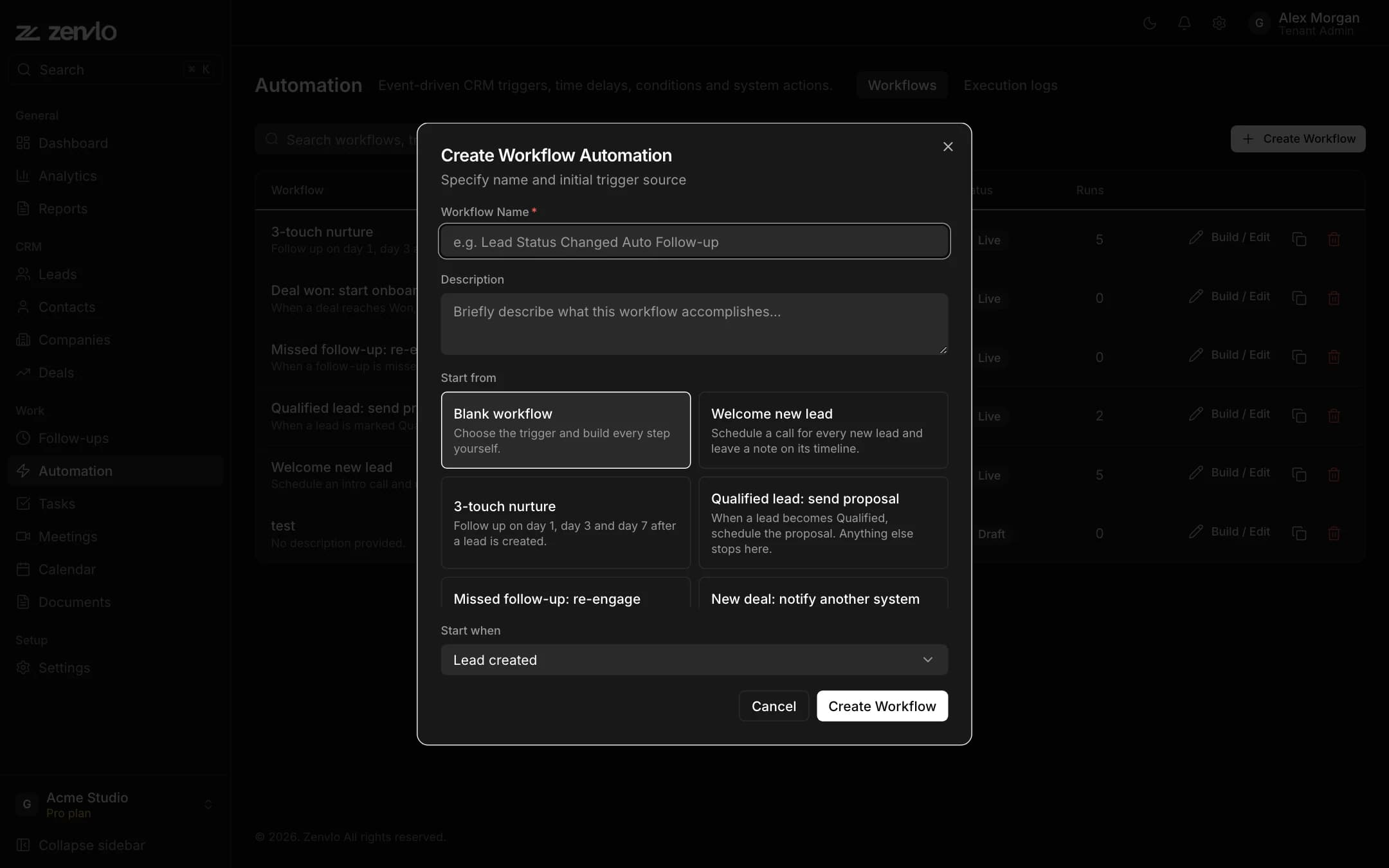
- 1Press Create Workflow.
- 2Enter a Workflow Name, a Description, and choose Start from a Blank workflow or a template: Welcome new lead, 3-touch nurture, Qualified lead: send proposal, Missed follow-up: re-engage or New deal: notify another system.
- 3Choose Start when, the thing that kicks it off.
- 4You land in the builder. Press the + on the canvas to add steps.
What can start a workflow
- A lead or contact is created or updated.
- A company is created.
- A deal is created or changes stage.
- A follow-up is created, completed or missed.
- A task or meeting is created.
- On a schedule, such as every N minutes or on a cron time like
0 9 * * 1-5. - An incoming webhook from another system.
- Run manually.
What a workflow can do
| Step | Does |
|---|---|
| Create follow-up | Adds a follow-up with a title, priority, owner and due date. Blank due date means in 24 hours. |
| Complete follow-up | Closes a follow-up. |
| Update lead / contact / deal | Changes status, owner or deal value. |
| Move deal to stage | Moves a deal to the stage you choose. |
| Assign owner | Hands the record to a person. |
| Add note to timeline | Writes a note on the record. |
| Call webhook | Sends data to another system (URL, method and timeout). |
| If / else | Branches into a Yes and a No path using conditions. |
| Wait / Wait until a date | Pauses for minutes, hours or days, or until a date. |
| Stop workflow | Ends the run. |
Use details from the record: Insert variable
Above any text box that supports it you will see Insert variable. Press it, search a field and click it. For example Call {{lead.name}} about their quote. {{now}}, {{current_user.id}} and {{tenant.id}} are always available.
Check, test and publish
- 1The toolbar shows N issues or Ready to publish. Fix anything it lists.
- 2Press Save draft to keep your work.
- 3Press Publish to make it live. The list then shows Live. Press the status to pause it later.
- 4Press Test to run it safely. Use Simulate so nothing really changes, edit the sample data, and press Run test. Tests run the published version.
In Execution logs, click a run to see What happened step by step. Runs that are still going can be cancelled.
Stuck? Talk to us and a real person will help.