Zenvlo CRM guide
Dashboard, analytics, goals and reports
See how your team is doing and send reports by email.
Dashboard
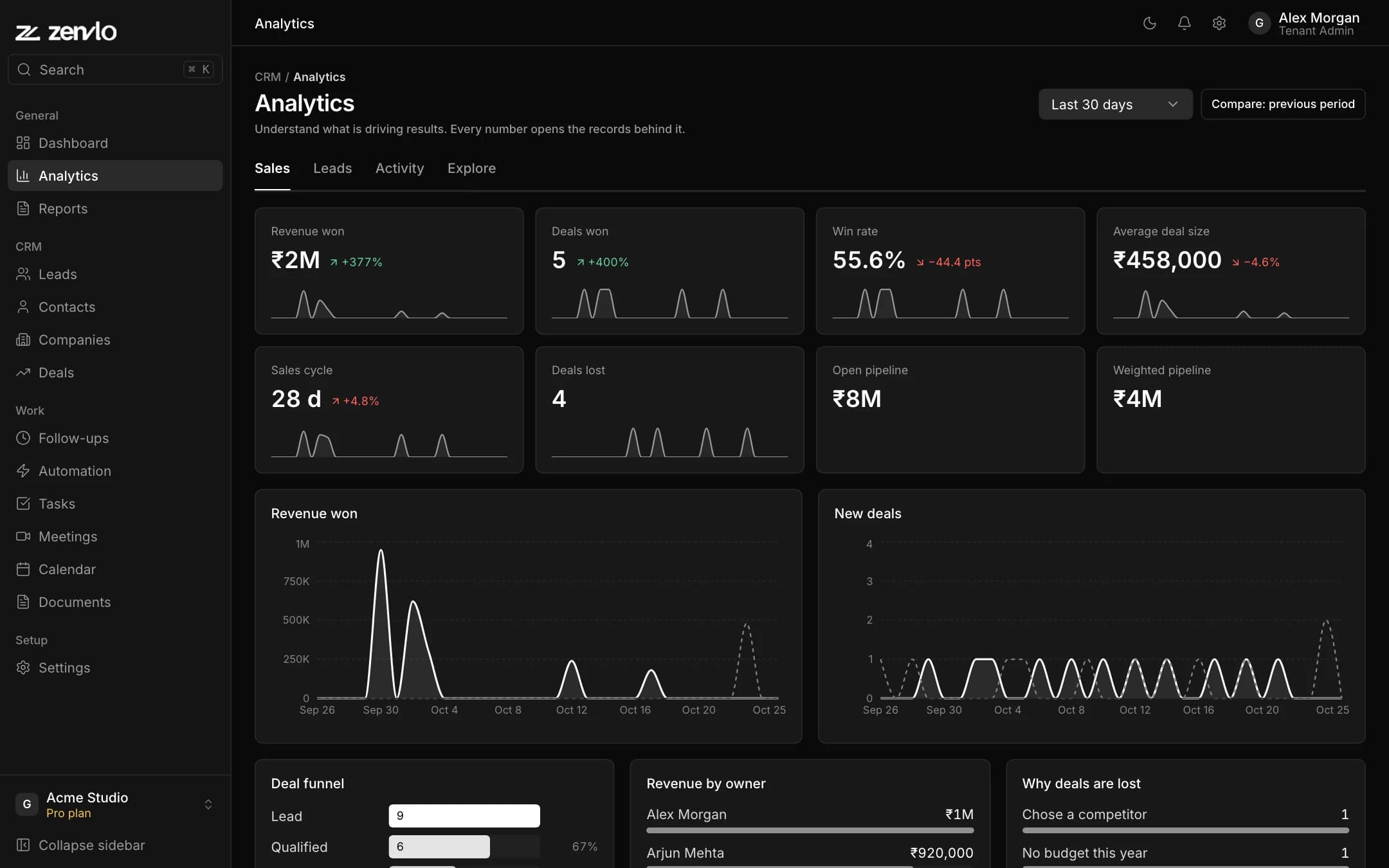
The Dashboard greets you with Revenue won, Deals won, Win rate, Open pipeline, New leads and Overdue follow-ups, a Trend chart, Needs attention (deals that may slip), the Deal funnel, Lead sources, Top performers and your Goals. Choose the date range at the top, and turn on Compare to see the change against the last period.
Reps see their own numbers. People with the All records permission see the whole team.
Analytics
Open Analytics for the tabs Sales, Leads, Activity and Explore. Click any number to open a drawer with the records behind it.
Goals
- 1At the bottom of the Dashboard find Goals and choose Month or Quarter.
- 2Press Set goal (shown if you may manage goals).
- 3Choose What to measure, For (the whole team or one person) and a Target above 0.
- 4Save. Saving the same goal again replaces the target.
Reports
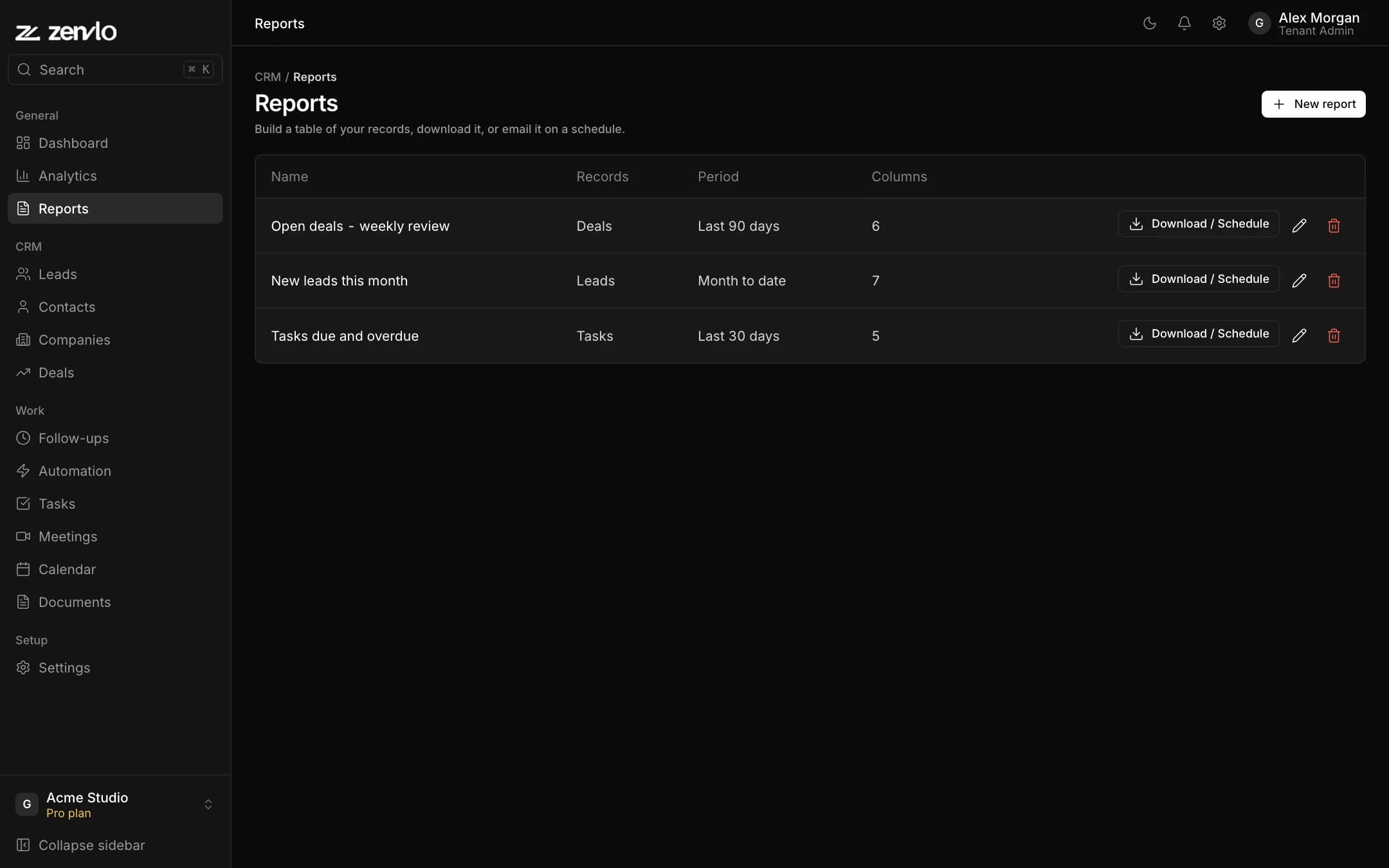
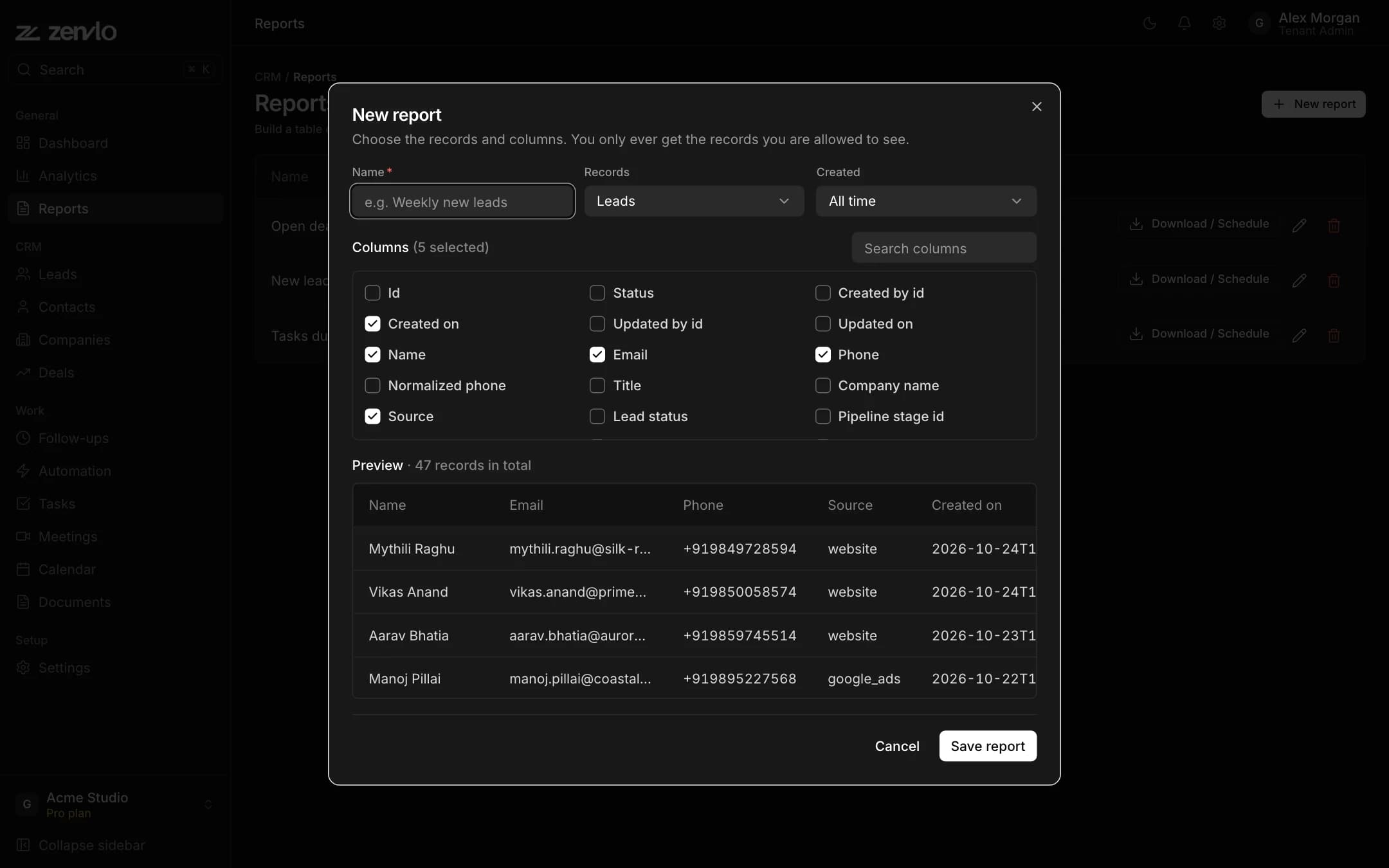
Open Reports and press New report. Choose Records (Leads, Deals, Tasks, Activities, Contacts or Companies), the Created range, and tick the columns you want. A live preview shows below. Name it and save.
On a saved report press Download / Schedule. New CSV or New Excel prepares a file. Under Email schedule choose Daily, Weekly or Monthly and add the emails to send to. You only ever see records you are allowed to see.
Stuck? Talk to us and a real person will help.