Zenvlo CRM guide
Leads
Capture, qualify and convert the people who might buy from you.
A lead is someone who may become a customer. Open Leads in the sidebar.
Add a lead
- 1Press Create. A Create Lead drawer opens.
- 2Under Basic Details enter Full Name (required), Email, Phone Number, Organization / Company, Job Title and Source.
- 3Under Status & Assignment choose a Status (required), a Lead Owner and Notes.
- 4Press Create.
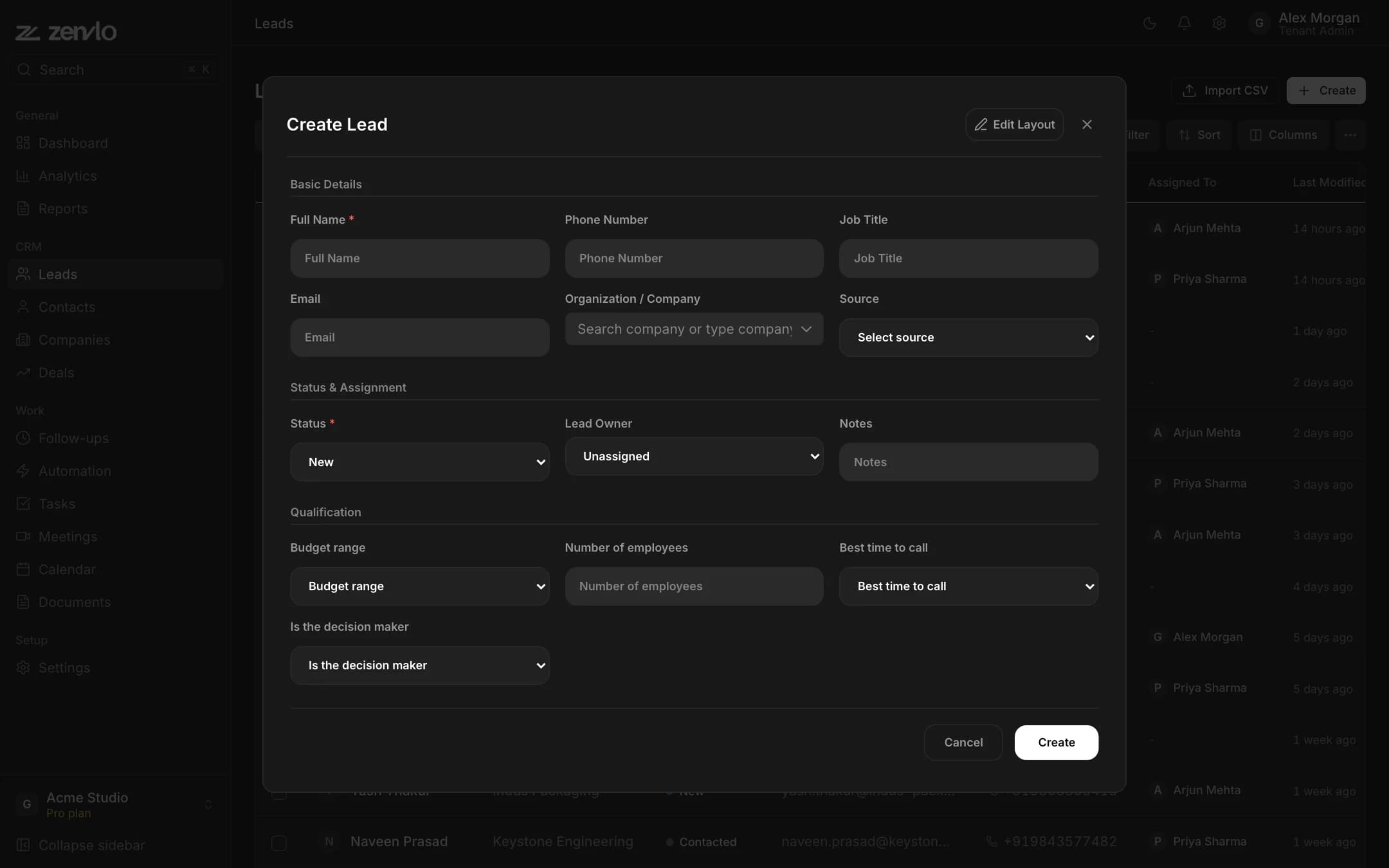
Want extra fields such as "Budget" or "Industry"? In the Create drawer press Edit Layout to add fields, sections and tabs. See custom fields.
Work with the list
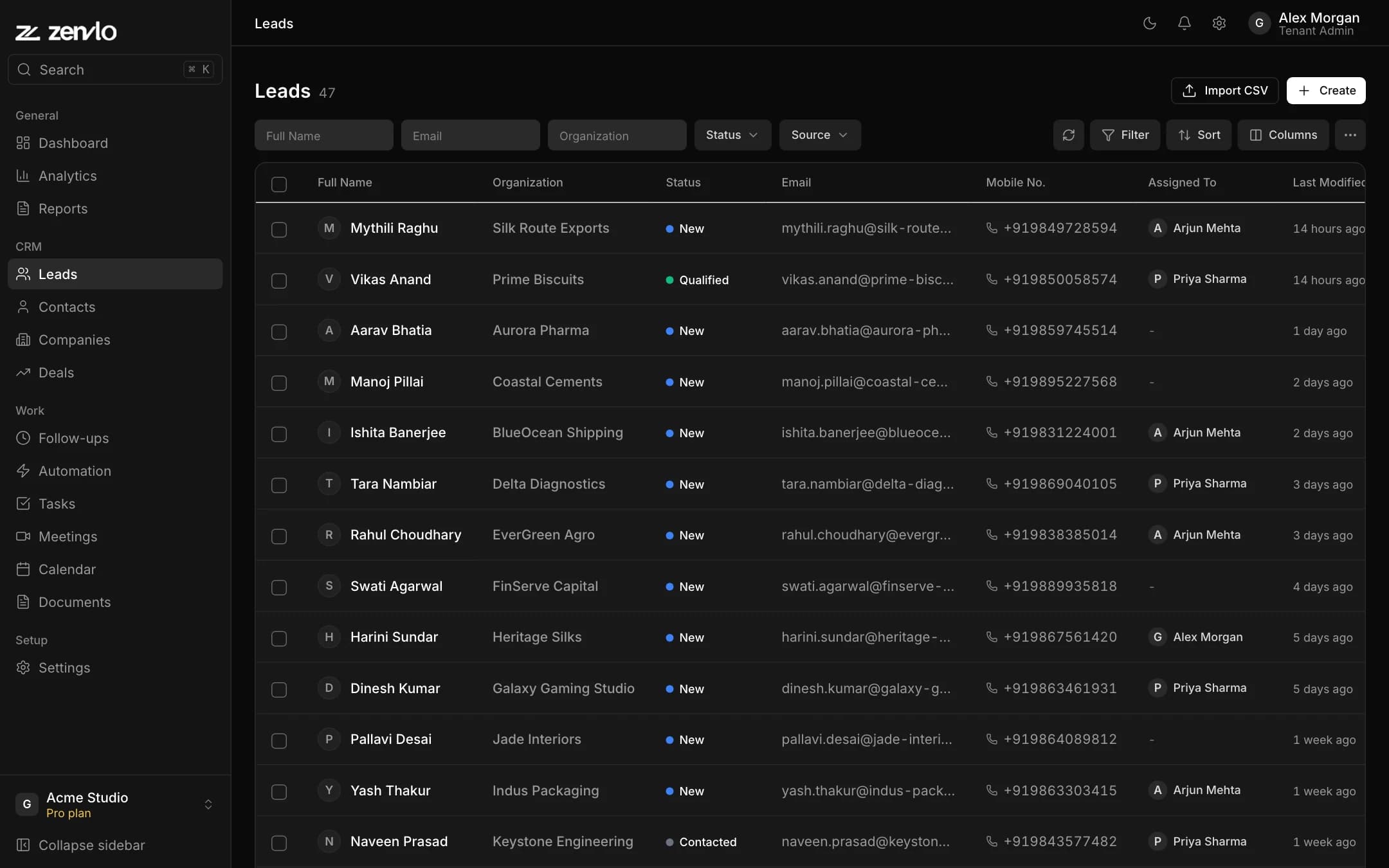
- Filter by Full Name, Email and Organization, then Status, Source, and the Filter pill for who it is assigned to and created dates.
- Choose Sort from the list of sort options.
- Columns shows or hides columns, and Zenvlo remembers your choice.
- Tick rows to see a bar with Reassign Owner, Update Status and delete.
- The More actions menu has Export CSV. It saves every page of the current filtered result as
leads_export_YYYY-MM-DD.csv.
Open a lead
Click a row. The page has tabs for Overview, Follow-ups, Timeline, Notes, Attachments, Open Activities, Closed Activities, Meetings and Emails. You can change the status at the top, and edit details with Edit or Edit All.
Convert a lead into a customer
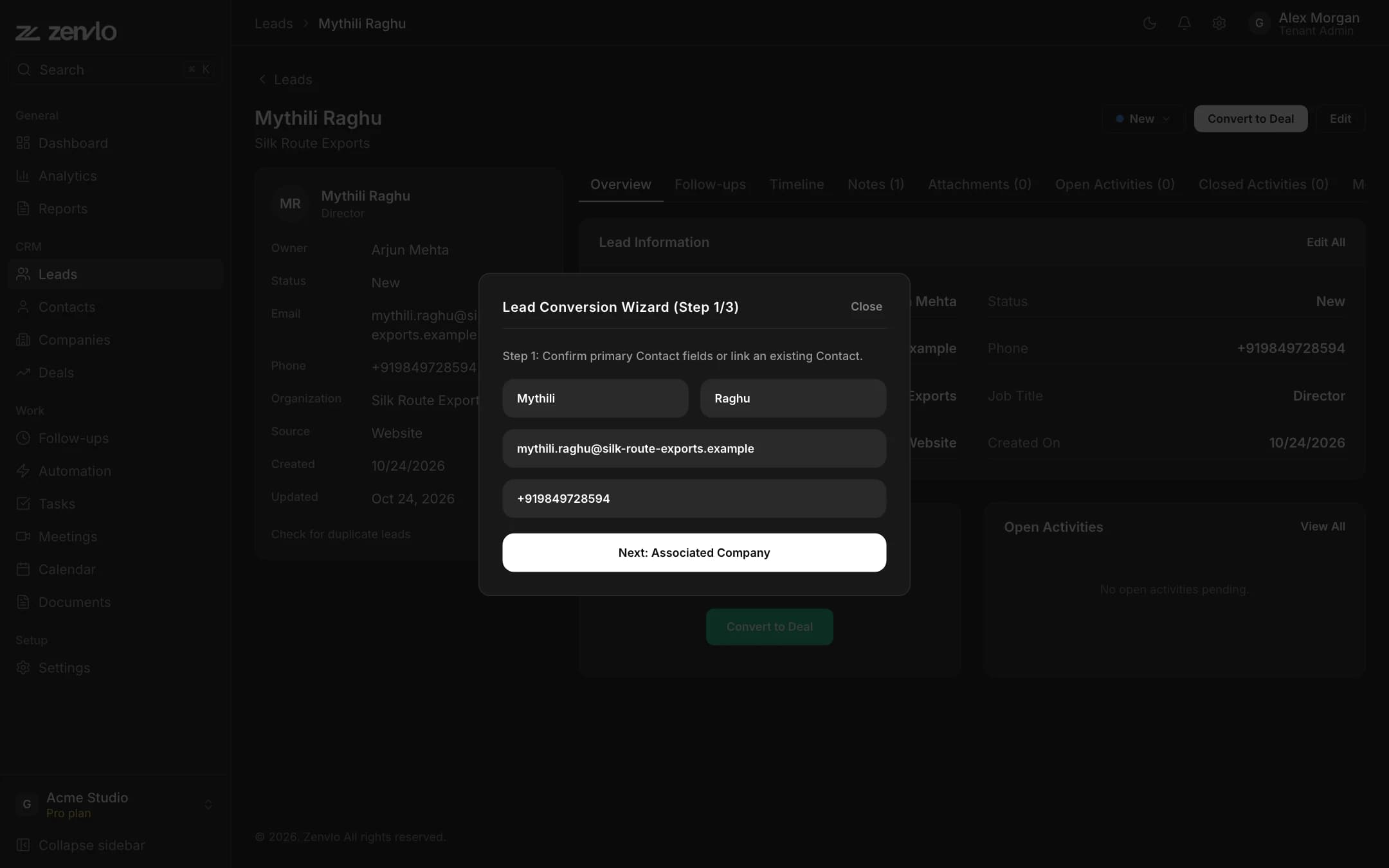
When a lead is ready, press Convert to Deal. A three-step wizard opens.
- 1
Contact
Check the name, email and phone. If a matching contact already exists, you can Link it, or choose Create New Contact instead. Press Next: Associated Company.
- 2
Company
Link an existing company or type a new company name.
- 3
Deal
Leave Create Associated Deal Opportunity ticked, give the Deal Title and Deal Value, choose the pipeline and stage, then press Finalize Conversion.
You will see Lead converted successfully! and the lead is marked Converted.
Merge duplicates
On a lead page press Check for duplicate leads. Zenvlo searches by email or name. Select one and press Merge Duplicate.
Stuck? Talk to us and a real person will help.