Zenvlo CRM guide
Tasks, meetings, calendar and documents
Plan your work, schedule calls and keep files with the right customer.
Tasks
Open Tasks and press Create Task. Enter a Title (required), Description, Priority (Low, Medium, High, Critical), Status, Due Date and Assign To. Use Link Target Type and Target Object to attach it to a lead, contact, company or deal.
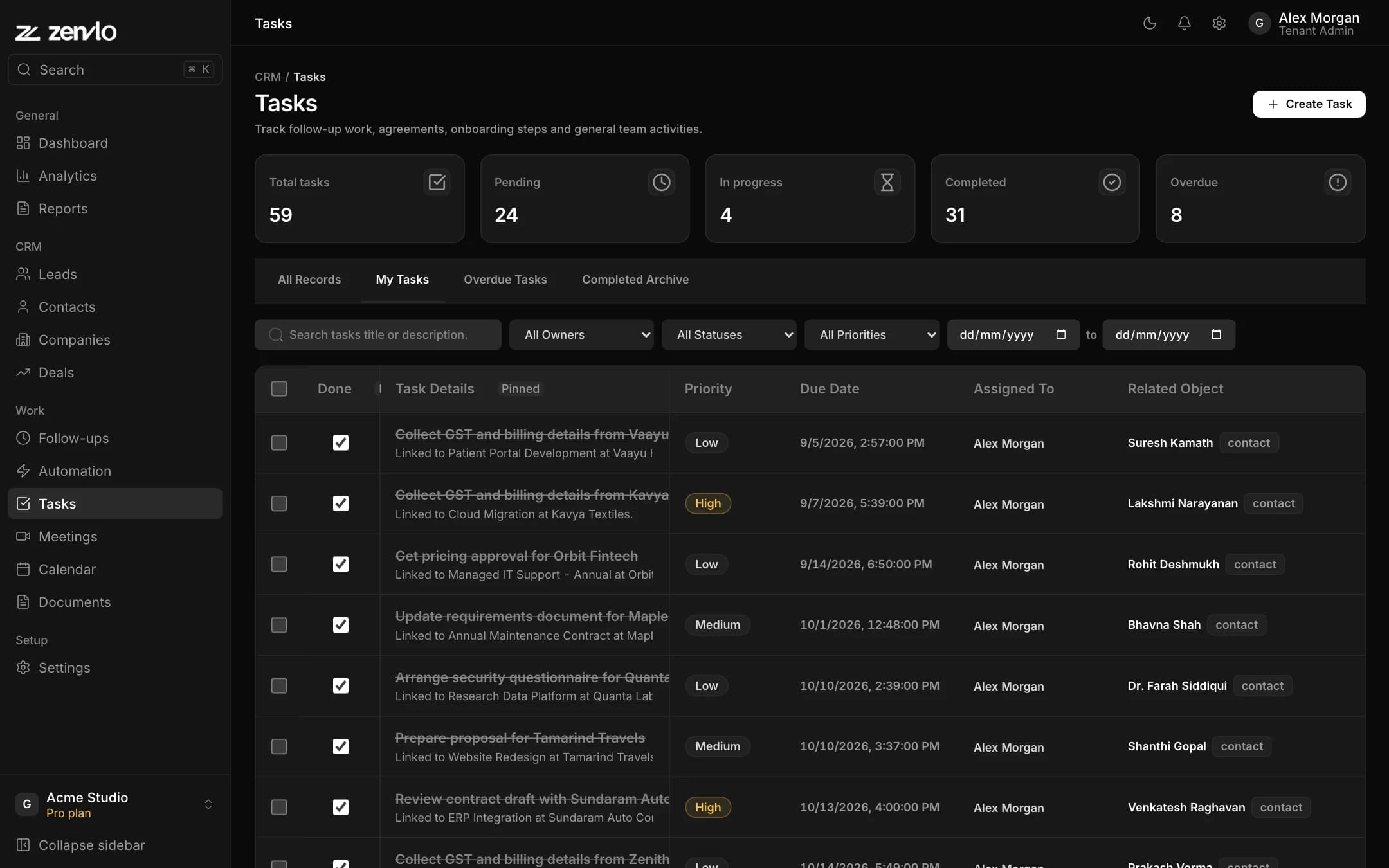
The cards at the top count Total tasks, Pending, In progress, Completed and Overdue. The tabs My Tasks, Overdue Tasks and Completed Archive are ready-made views, and Save Current View makes your own. Tick the box on a row to complete it quickly.
Meetings
Open Meetings and press Schedule Meeting. Give a Meeting Title, Start Time and End Time, link it to a lead, contact or company, choose the Organizer / Owner, add a Location or Meeting Link, and write the Agenda.
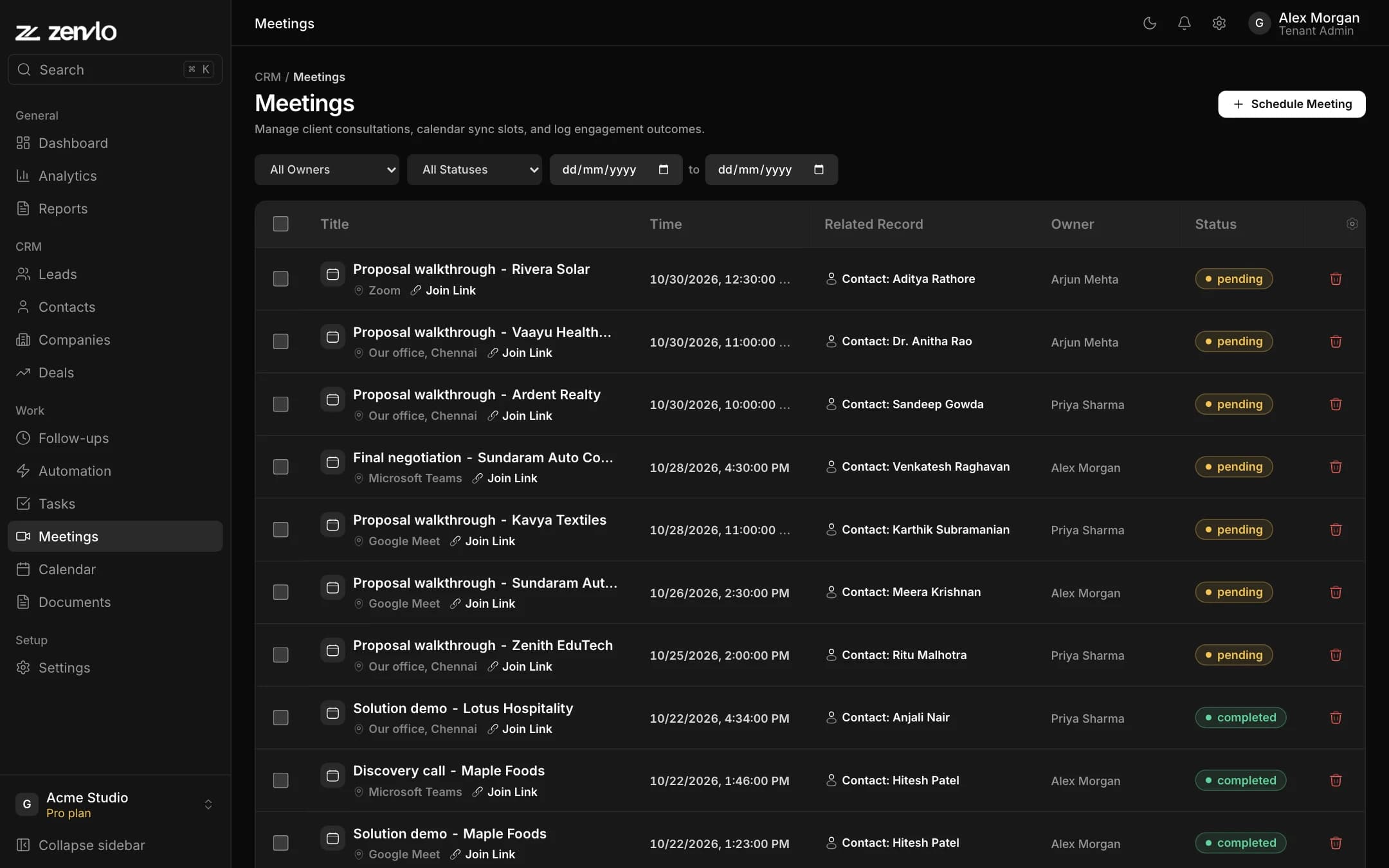
After the meeting open it and set the Outcome Status (Pending, Completed, No Show, Rescheduled, Cancelled) and add Outcome Notes.
Calendar
Open Calendar for month, week and day views of your tasks, meetings and follow-ups. Click a day to quickly schedule a Task / To-Do or a Meeting. The calendar is inside Zenvlo. It does not sync with Google or Outlook.
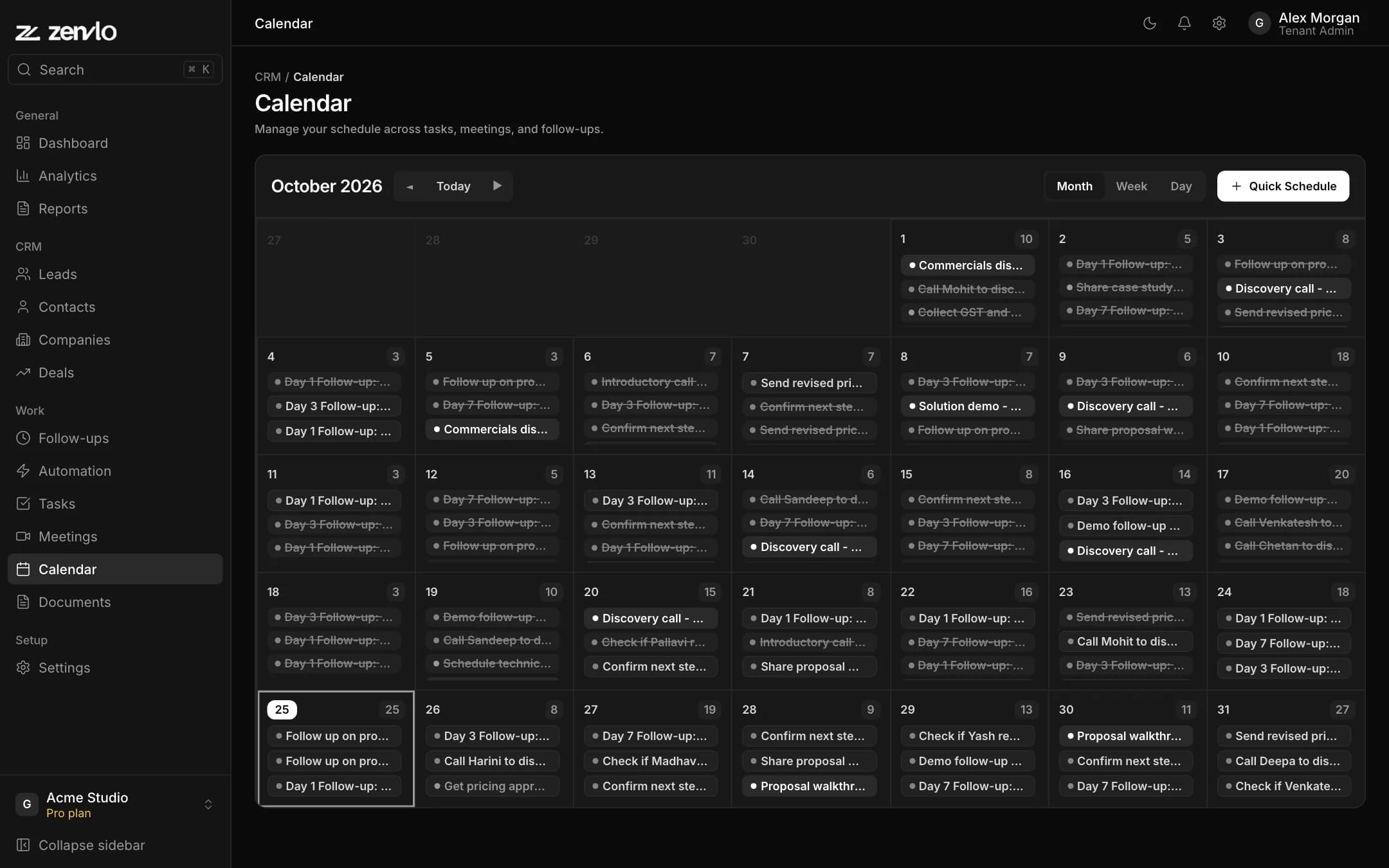
Documents and attachments
- 1Open Documents and press Upload Document.
- 2Choose the file, name it, pick a Category (Contract, Proposal, Invoice, ID / Identity or Other), and link it to a customer.
- 3On any lead, contact, company or deal open the Attachments tab, drag a file in or click to upload.
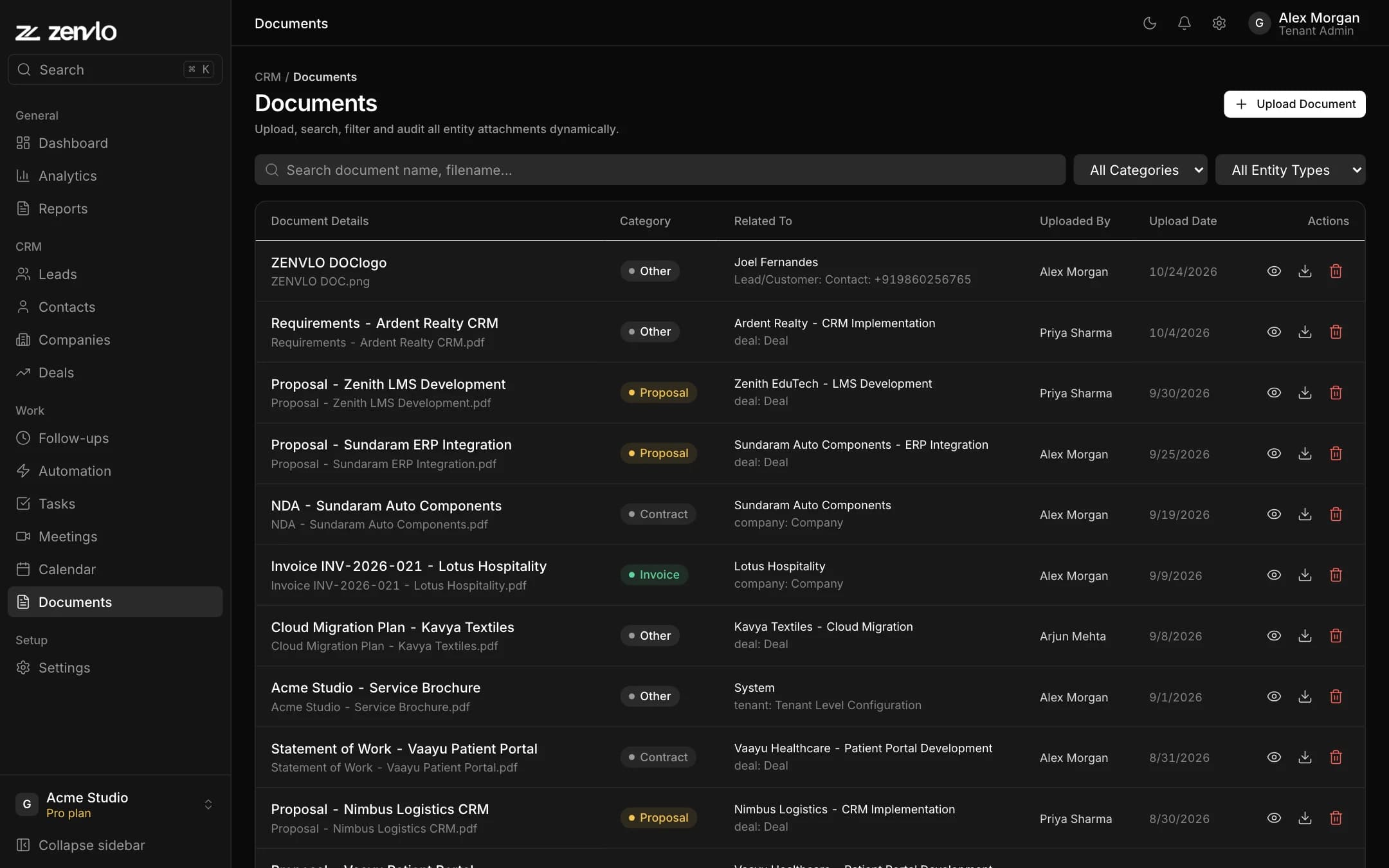
You can attach PDF, Word, Excel, images, CSV and text files up to 50 MB.
Stuck? Talk to us and a real person will help.