Zenvlo CRM guide
Import leads, contacts and companies
Bring your existing list in from a CSV file in a few minutes.
You can import into Leads, Contacts and Companies the same way. The example below is for leads.
Prepare your file
- Save your spreadsheet as CSV.
- The first row must be headings, followed by at least one row of data.
- Want a ready layout? Open the import drawer and download the template.
| Importing | Template columns |
|---|---|
| Leads | Full Name, Email, Phone, Company Name, Job Title, Source, Status |
| Contacts | Full Name, Email, Phone, Company Name, Job Title |
| Companies | Company Name, Website, Industry, Phone, Email |
Import
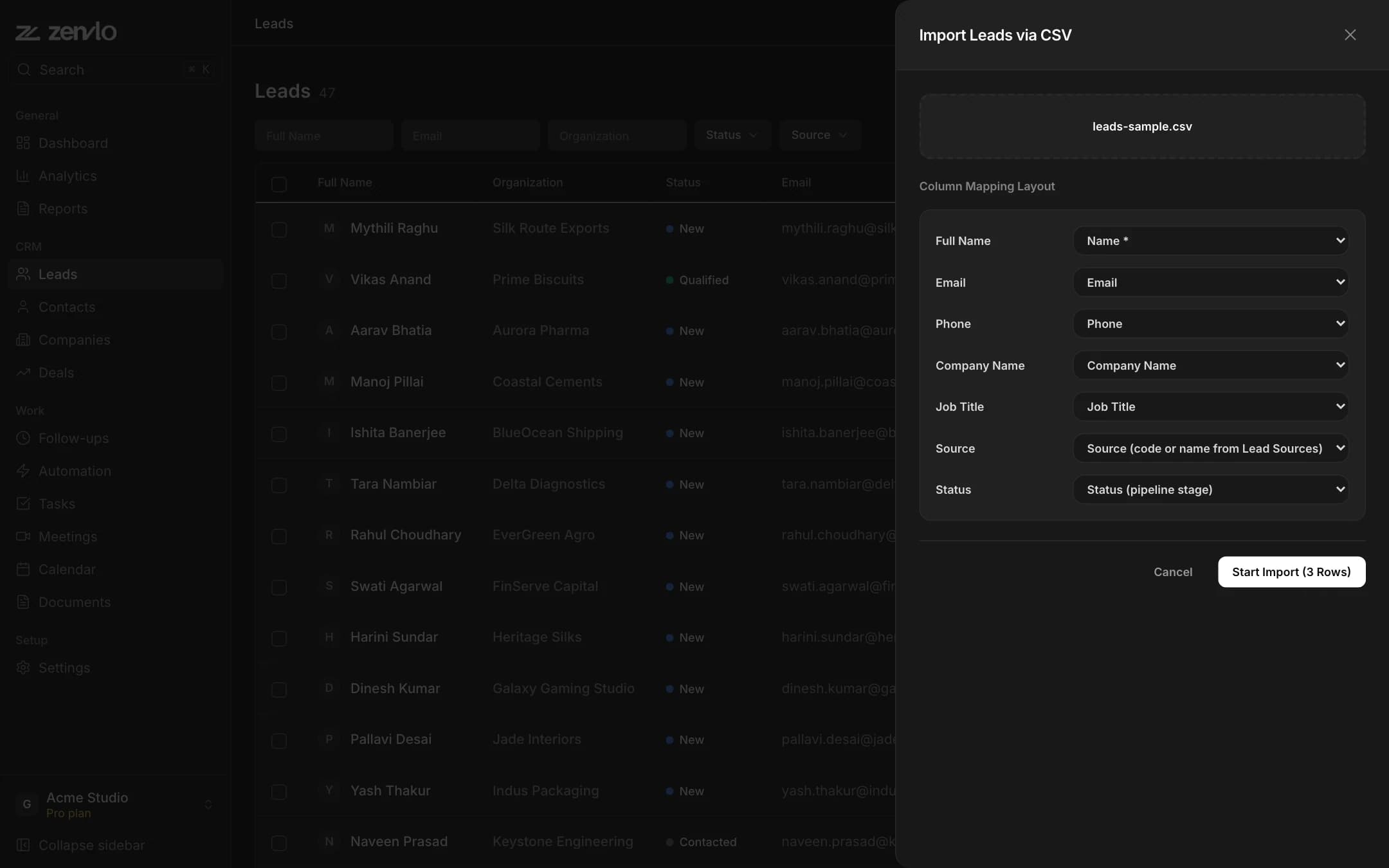
- 1Open Leads and press Import CSV. The Import Leads via CSV drawer opens.
- 2Choose your file.
- 3Match each column in your file to a Zenvlo field: Name (required), Email, Phone, Company Name, Job Title, Source (a code or name from Lead Sources) or Status (a pipeline stage). Zenvlo guesses from your headings. Choose Ignore Column for anything you do not need.
- 4Press Start Import (N Rows). The button stays off until a column is matched to Name.
When it finishes you see a summary like Imported 120 leads, skipped 3 duplicates, 1 row failed, 2 rows skipped (no name).
Export
Use Export CSV in the More actions menu on Leads, Contacts and Companies, or Export on Deals, to download what you are looking at.
Stuck? Talk to us and a real person will help.