Zenvlo CRM guide
Deals and your pipeline
Track every opportunity on a board, move it forward, and mark it won or lost.
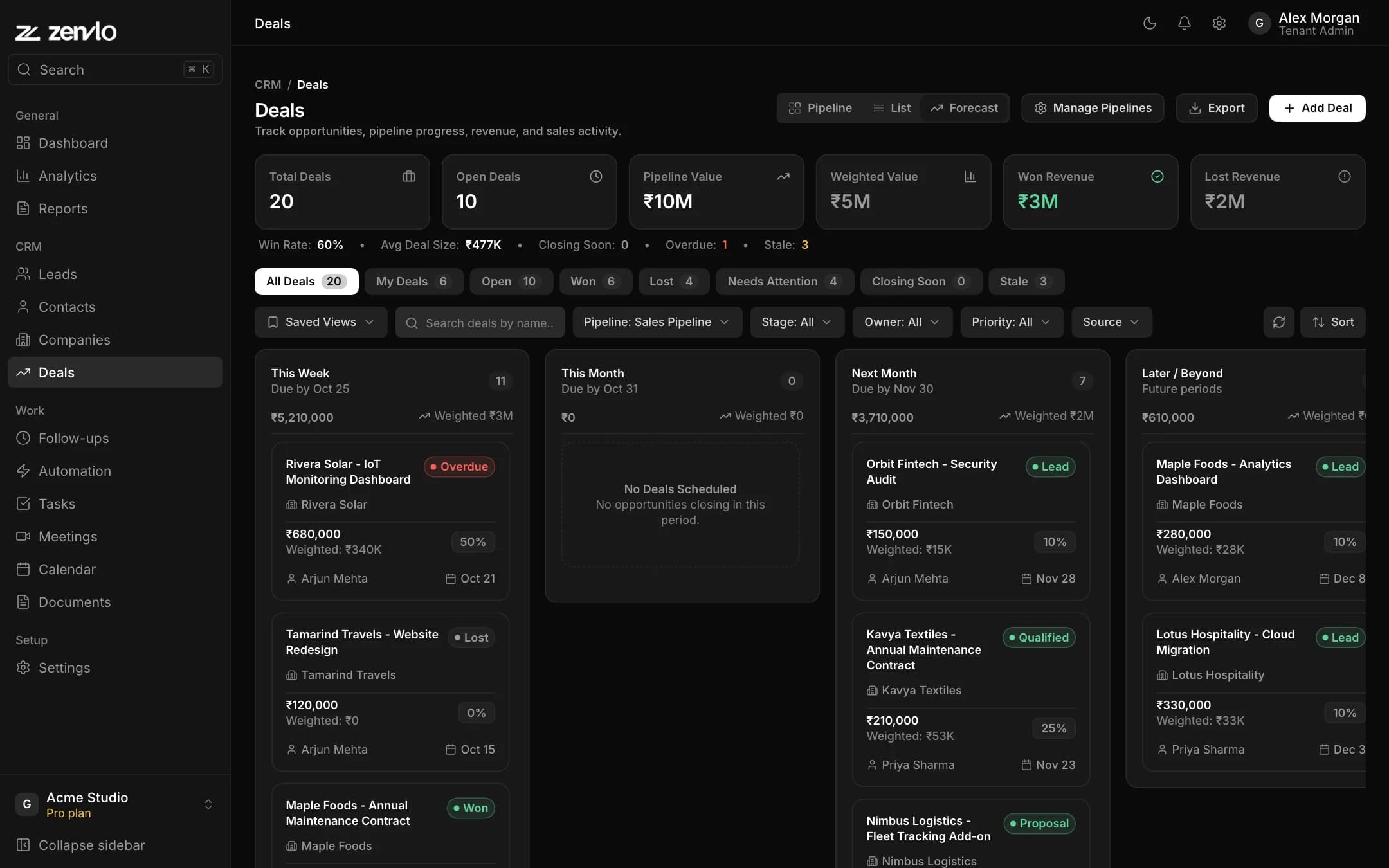
Open Deals. The board is the default view. Switch with Pipeline, the list view or Forecast.
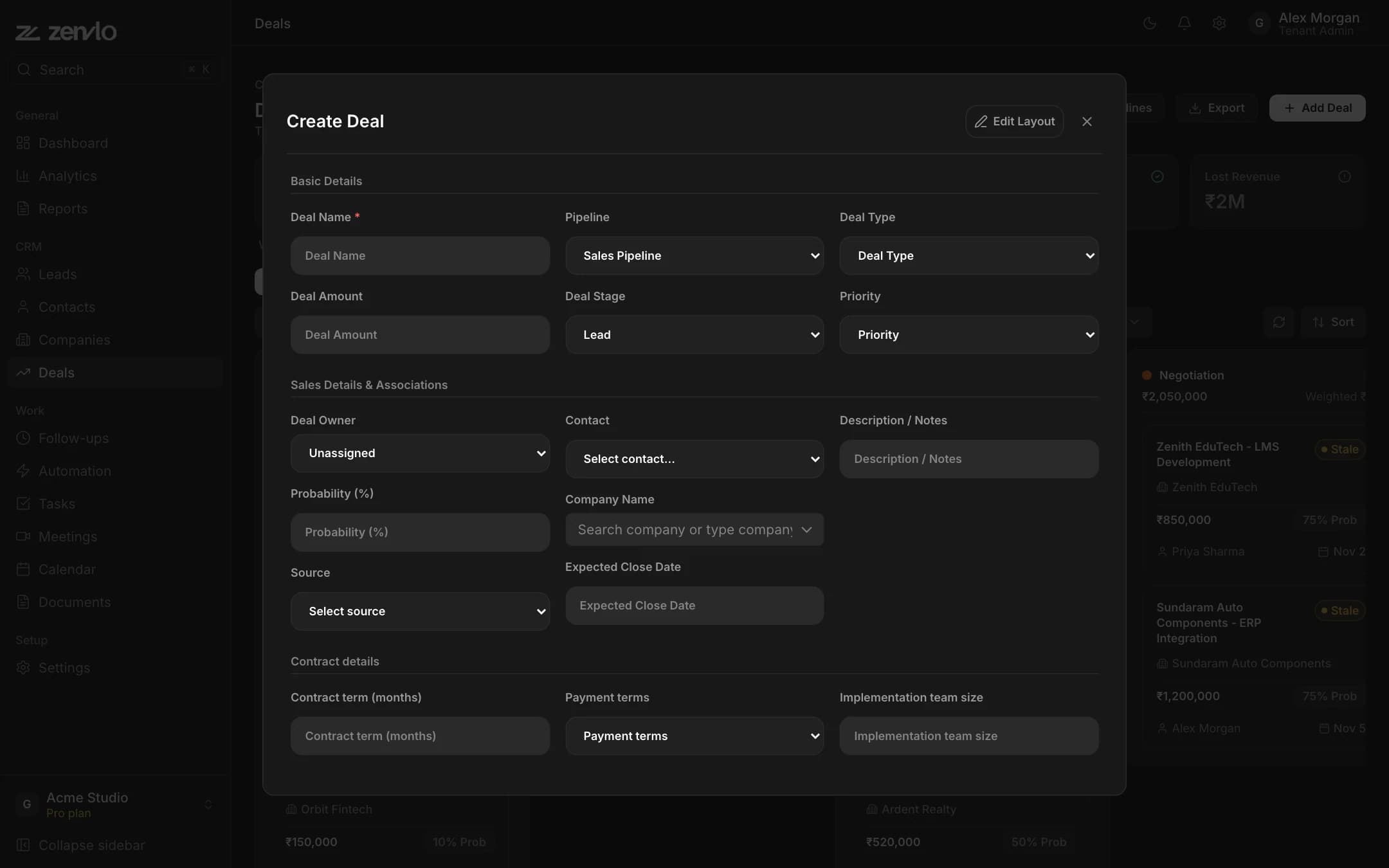
Create a deal
- 1Press Add Deal.
- 2Enter Deal Name (required) and Deal Amount.
- 3Choose the Pipeline and Deal Stage, then Deal Type, Priority, Deal Owner, Probability (%), Source, Contact, Company Name, Expected Close Date and Description / Notes.
- 4Save.
Move a deal along
Drag a card to another column. You see Moved to {stage}. If a move fails it snaps back and says Failed to move stage. Reverted.
Won and lost
- Drop a deal on a won stage to open Mark Deal as Closed Won, set the date and press Mark as Closed Won.
- Drop it on a lost stage to open Mark Deal as Closed Lost. Choose a reason category and say why it was lost, then press Mark as Closed Lost.
- Inside a deal page you can press Mark as Won or Mark as Lost at the top. A closed deal shows Closed Won or Closed Lost and a Reopen button.
Read the numbers
The cards at the top show Total Deals, Open Deals, Pipeline Value, Weighted Value (amount times probability), Won Revenue and Lost Revenue. The chips below filter the board: All Deals, My Deals, Open, Won, Lost, Needs Attention, Closing Soon and Stale.
Use Saved Views for ready-made filters such as My Open Deals and Closing This Month, or save your own with a name.
Forecast groups open deals into This Week, This Month, Next Month and Later, with the total and weighted value for each.
Stuck? Talk to us and a real person will help.