Zenvlo CRM guide
Pipelines, sources and rules
Shape the stages leads and deals move through, where leads come from, and who gets them.
Open Settings, then All Settings. Under Sales setup you will find these four.
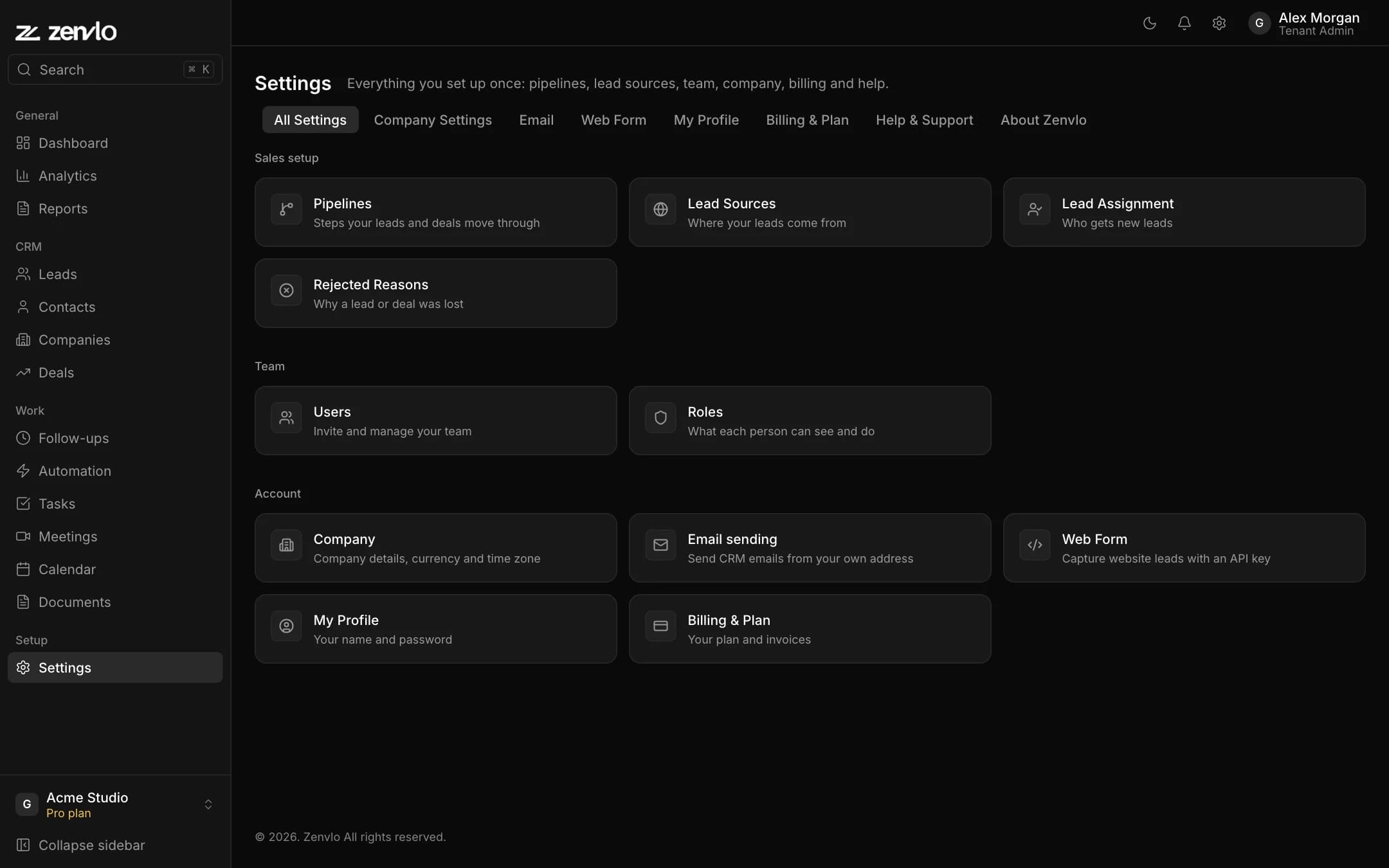
Pipelines
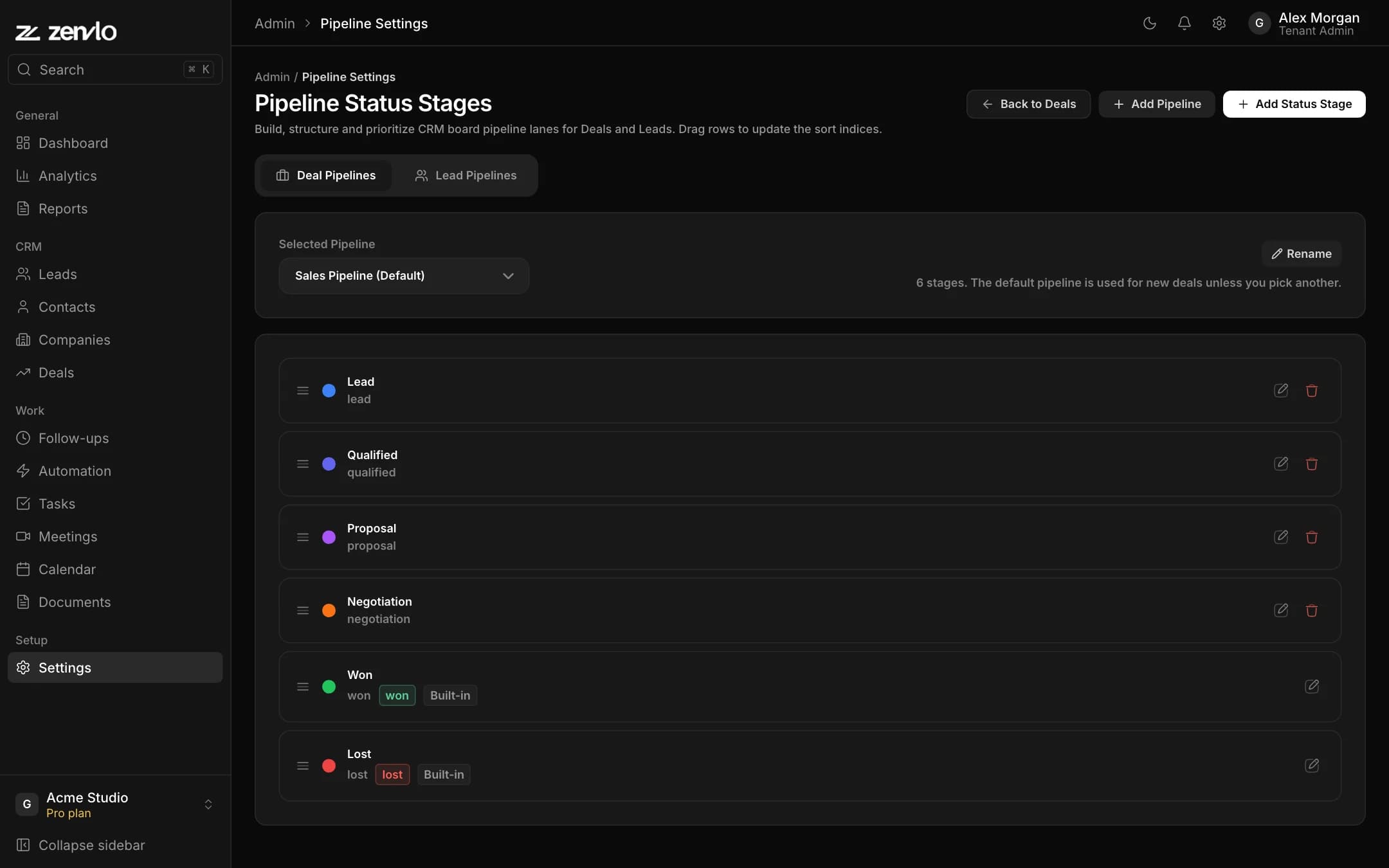
Open Pipelines. Switch between Deal Pipelines and Lead Pipelines, and pick one in Selected Pipeline.
- Add Pipeline (for deals), enter a Pipeline Name, and start with Basic stages (New, In Progress, Won, Lost) or copy another.
- Add Status Stage with a Status Title, a Stage Color Code and, for deals, what the stage means: Still working on it, Won or Lost.
- Drag rows to reorder. Rename and Make default as needed.
- A stage that still has records cannot be deleted, and a pipeline can be deleted only when no deals use it.
The stages of the Lead pipeline are your lead statuses.
Lead sources
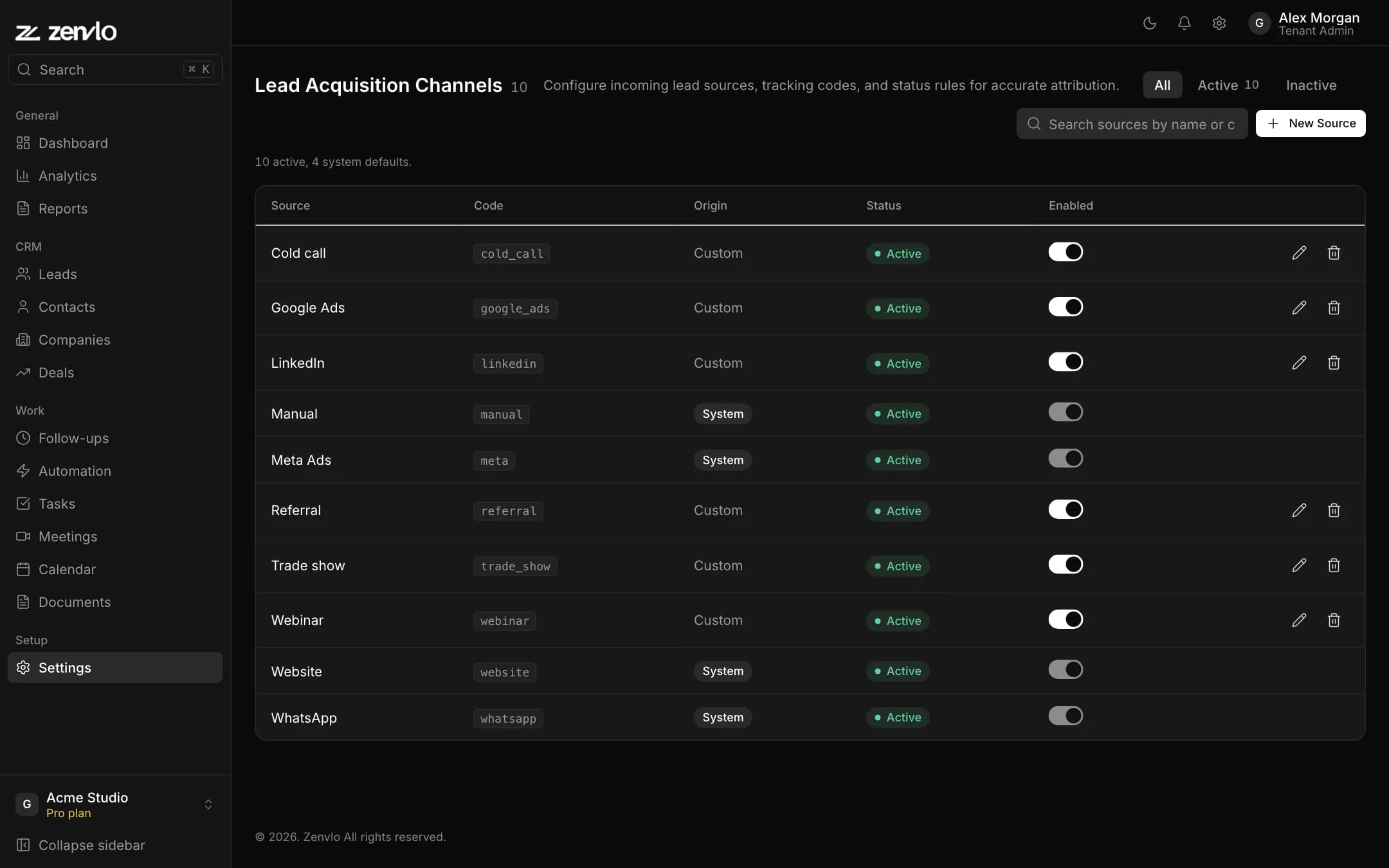
Open Lead Sources (Lead Acquisition Channels). Filter All, Active or Inactive. Add your own channels and switch them on or off. System sources cannot be switched off.
Lead assignment
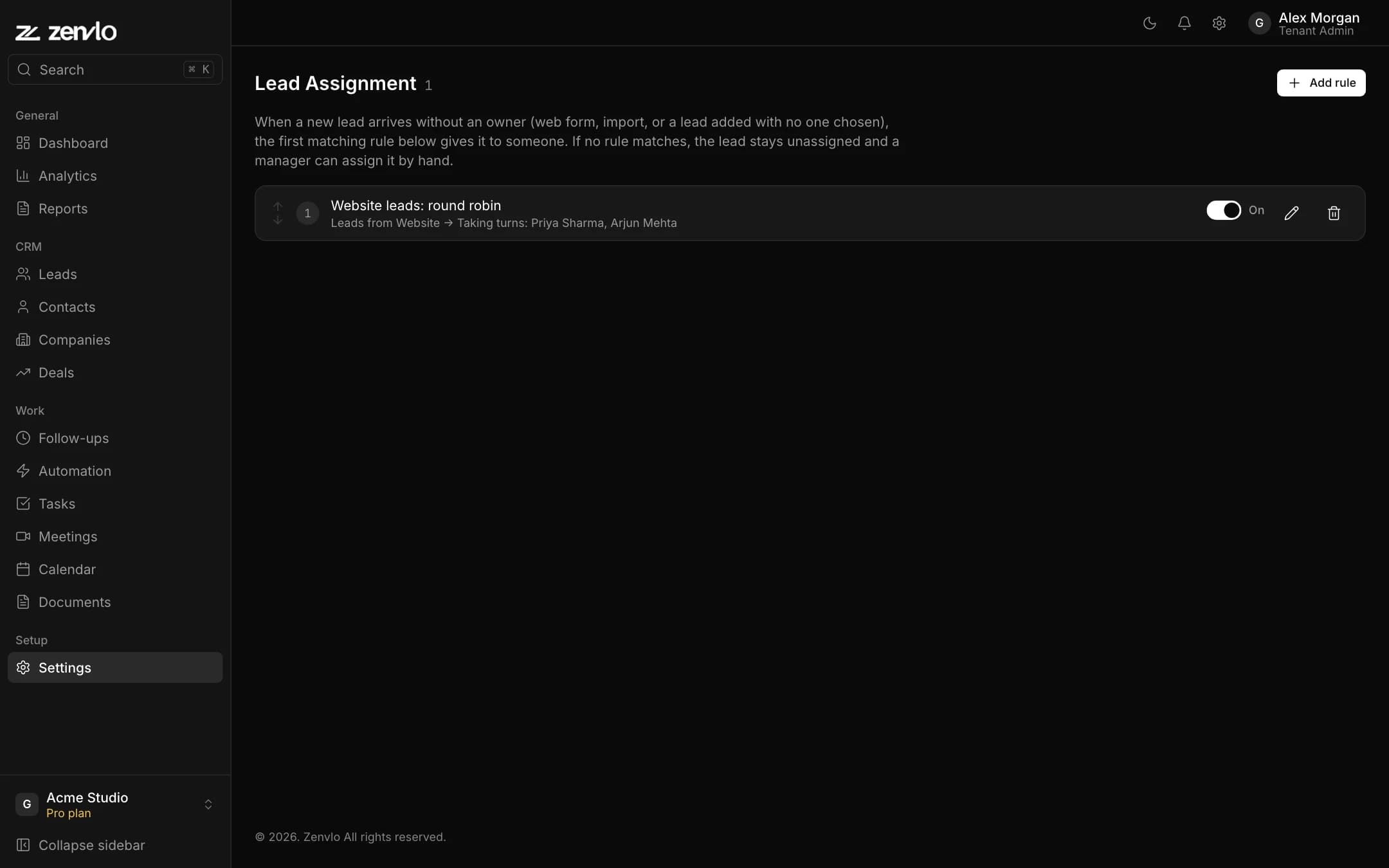
Open Lead Assignment and press Add rule.
- 1Name the rule.
- 2Under Which leads? choose All new leads or Only leads from a source.
- 3Under Give them to choose one person, or round robin across several people.
- 4Use the arrows to order rules and the switch to turn one on or off.
The first matching rule wins. Round robin skips suspended users. Rules apply to web-form, imported and unassigned leads.
Rejected and lost reasons
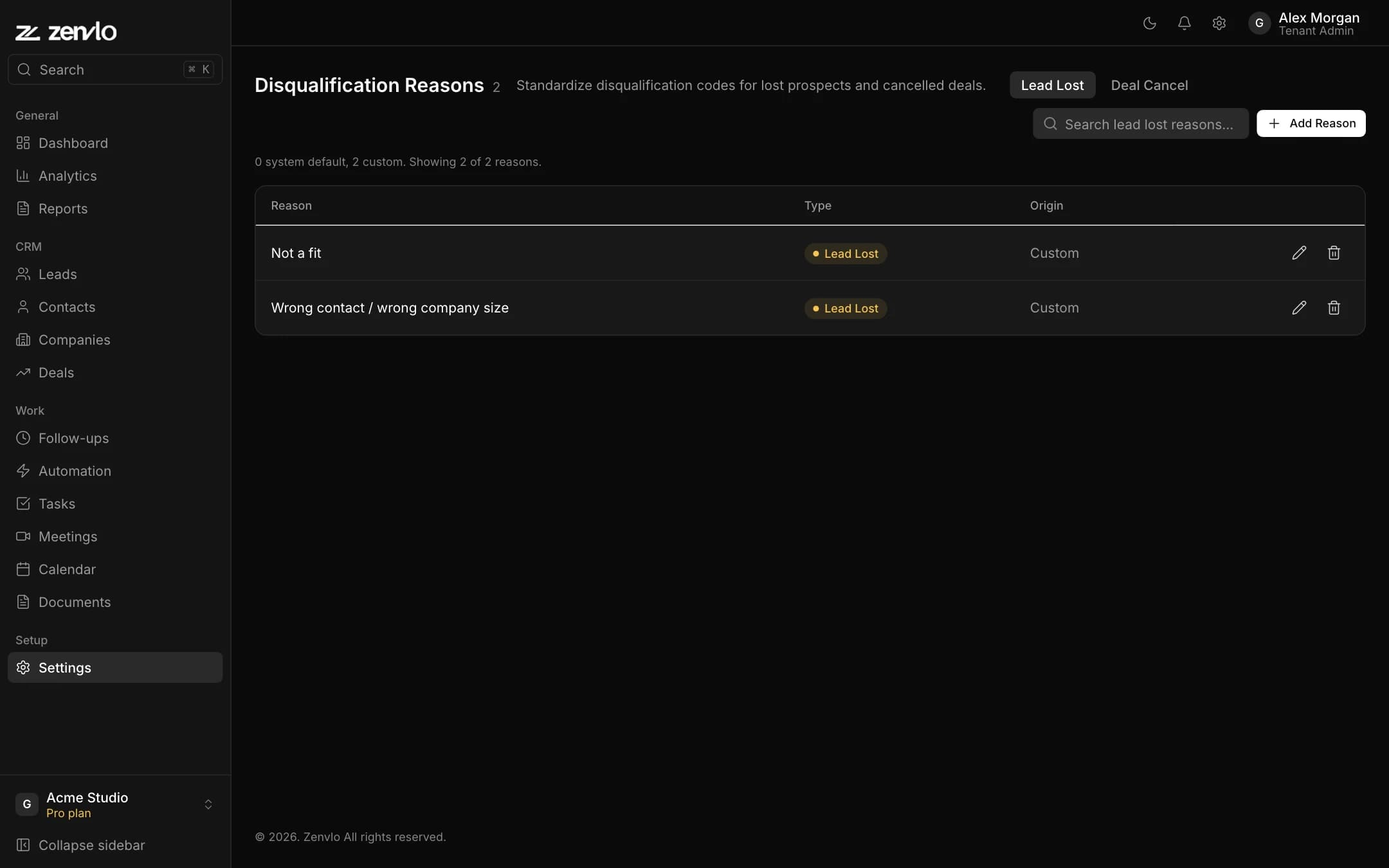
Open Rejected Reasons and press New Reason. Choose Deal Lost or Deal Cancel. These fill the dropdown people use when they mark a deal lost, so your reports show why you lose.
Custom fields
In any Create drawer (Lead, Contact, Company or Deal) press Edit Layout. You can Add Field (text, dropdown, number, email, phone or date, optionally required), Add Section / Tab, reorder, and Reset.
Stuck? Talk to us and a real person will help.